Some preliminaries
- this page describes the setup of Netscape Communicator as an E-Mail client, for staff and students of the Department of Computer Science.
- this setup applies to all platforms Netscape Communicator is available for.
- this setup addresses the setup for reading and sending E-Mail from any
internet connection:
- from any machine at the department
- dialing in to a machine at the department from home or any other location using a modem
- from any machine from within the kuleuven.be domain
- from any other machine connected to the internet
- what exactly is your E-Mail address
- what server to use as Outgoing Mail Server
- what server to use as Incoming Mail Server
The Communicator suite consists of several parts. The part that is used to read and send E-Mail is the Messenger. The Communicator suite can be configured, to a large extent, by using the Preferences window.
The Preferences window can be activated by selecting the corresponding button in the Edit menu. It is structured in several groups. You can open such a group by clicking on the small triangle in front of it. When open, the different sub-items of the group are shown. You can activate such a sub-item by clicking on it. When a sub-item is activated, it's configuration items are shown on the right of the window.
If you open 2 windows of Netscape (under the File menu, using the New -> Navigator Window button), you can edit your preferences by activating it from one of the windows, while still being able to browse through this page using the other window.
Netscape Messenger Configuration
Sending E-Mail
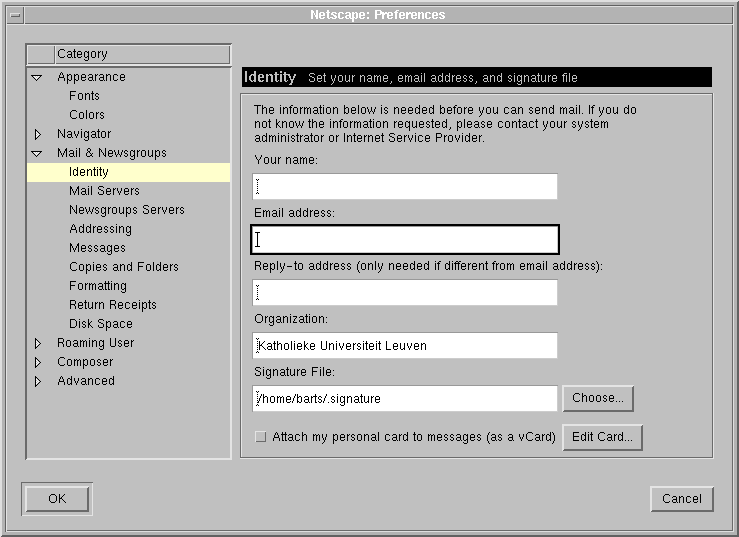
All you need to do to be able to send E-Mail is to fill in your correct identity and Outgoing E-Mail server:- Follow Edit -> Preferences -> Mail &
Newsgroups -> Identity to display the correct window. Fill in at least
your name and E-Mail address.
If you do not know what your E-Mail address is, see under the preliminaries above or ask the programmeur van week .
This E-Mail address will be used to send replies on your E-Mails. Of course it is always possible to trace who really sent an E-Mail, so using somebody else's E-Mail address, by way of a joke, when sending an E-Mail really does not help in concealling your real identity. These fields are only meant to make it easy to reply and to offer a more human-readable form of the identity of the sender. Abuse is always taken serious and will result in actions against the offender. - Follow Edit -> Preferences -> Mail &
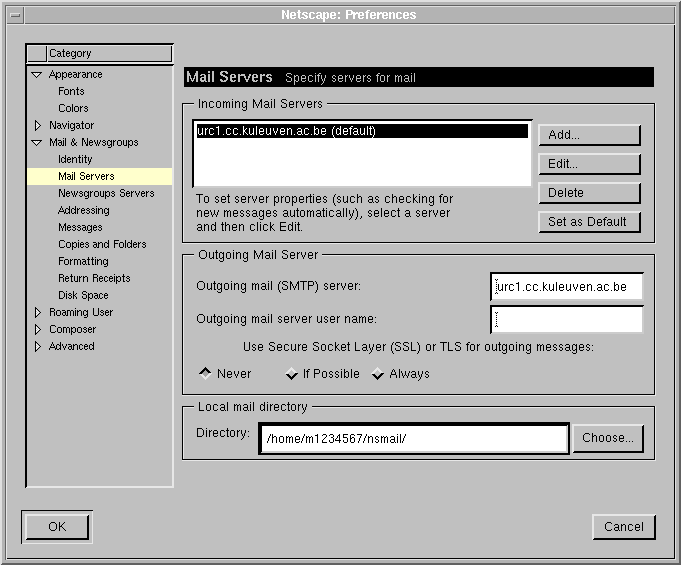
Newsgroups -> Mail Servers to display the window to fill in the E-Mail
server(s). Use the appropriate server for the Outgoing mail
(SMTP) server field.
Leave the Outgoing mail server user name field blank.
Under the other sub-items of the Mail & Newsgroups group on the Preferences window, you will find more configurable items that control what happens when you send an E-Mail. You can specify whether or not you want an automatic copy for yourself and where to put that copy, how etc.
Reading your E-Mail
How to read your E-Mail using Netscape depends on where you execute it and where your E-Mail is kept. You need to configure an Incoming Mail Server. You can do this on the Edit -> Preferences -> Mail & Newsgroups -> Mail Servers window. The easiest way to configure this is by deleting whatever server is specified as Incoming Mail Server and creating a new one. You delete the existing server by selecting it and then pressing the Delete button to the right of it. You create a new server entry by pressing the Add button.You have two major options for reading E-Mail with Netscape:
- Your mailbox is (i.e. your E-Mail arrives) on the same system you execute netscape on.
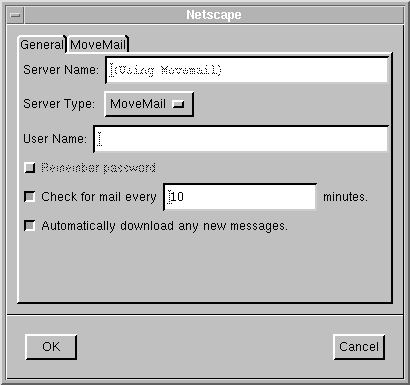
- Configure netscape on Edit -> Preferences -> Mail & Newsgroups -> Mail Servers to use movemail. Movemail only looks for new E-Mail on the machine you execute netscape on, so you do not need to enter the name of your E-Mail server. In this way however, you can only read your E-Mail when you execute netscape on the machine your mailbox is on. It can be difficult to execute netscape on one machine and display the window on the screen of another, especially when you are working via a modem or another slow link. In that case, you should consider using the second option.
- Your mailbox is (i.e. your E-Mail arrives) on a different machine than where you execute netscape.
- You can/must choose between two protocols :
-
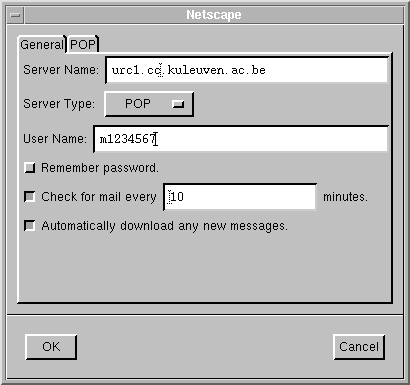
POP is the easiest protocol, where E-Mail will (normally) be transferred
to the machine where you execute netscape. Set it up on Edit
-> Preferences -> Mail & Newsgroups -> Mail Servers. You must specify
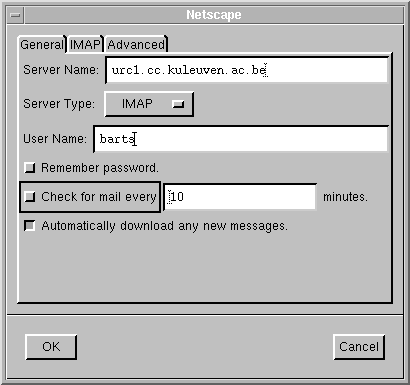
the Server Name to contact and the User Name with which to
do that. You should of course select POP as the Server Type.
When trying to read E-Mail using the Messenger window, the server will ask you for the corresponding password, before giving you access to the E-Mails. The E-Mail messages will be transfered to the machine you execute netscape on. In this way, E-Mail that you received earlier can only be accessed by executing netscape on the same machine you used before to read that E-Mail.
If you use several machines to read your E-Mail, consider using the IMAP protocol. It is indeed true that with POP you do not need to contact the E-Mail server when you want to read E-Mail messages you received in the past, since that E-Mail is stored on the machine you use to read your E-Mail. You can however, achieve a similar advantage with IMAP, by using local folders or by synchronizing your Inbox locally (i.e. creating a copy of your mailbox on the local machine, which is kept exactly the same as your real mailbox automatically ... a lot of IMAP clients support this feature).
The POP option to leave the messages on the server really gives you more troubles than advantages in the long end because in this way you build up messages in your mailbox, that you do not see anymore in your E-Mail client, because you downloaded them earlier. In the long run something will go wrong and you will get all of these messages as if they were new ones. Really, if you want to read your E-Mail from more than one machine, you are better of using the IMAP protocol, which is specificly designed for just that and which has extra features that are useful. -
IMAP is a more elaborate protocol: it allows you to
read E-Mail from several different machines by leaving your mailbox on the
server. The E-Mail server will store your E-Mails in a specific location, usually
in a sub directory of your home directory on that server. As for the POP protocol,
you need to fill the Server Name to contact and with which User
Name to do that. Set it up on
Edit ->
Preferences -> Mail & Newsgroups -> Mail Servers. You select of
course the IMAP protocol as the Server Type.
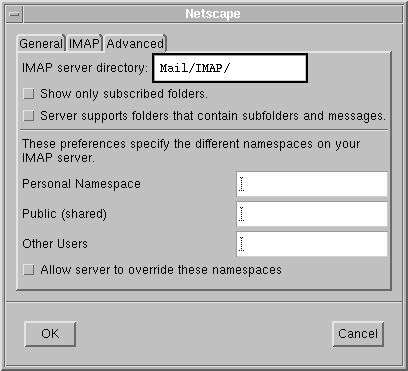
On the Advanced Tab of that window, you can specify additional parameters. An important one is the IMAP server directory: it is the directory in which the IMAP server stores the messages.
The IMAP servers of the department of Computer Science do not support folders that contain subfolders and messages. It is probably also best not to show only subscribed folders, unless you are very much aware of which folders there are. And if you know what namespaces are and how to use them, please let us know, we haven't found a suitable use yet ;-)Warning:
The first time you fill in a directory in the IMAP server directory field, you should not make a connection to the IMAP server right away, but first stop and restart your netscape. Otherwise, netscape will not look for E-Mail folders in the specified directory, but in your home directory. It will probably find a lot of files and directories there, thus taking a lot of time (and bandwidth) to complete.
You can avoid this, by restarting netscape ! It will then look for your folders in the directory you specified.
Why netscape behaves like this and whether there is a simple solution is still unknown; for now, restarting is all you can (and should) do ... not too much of a bother, is it ;-)
Saving your E-Mail
You can use the Local mail directory (see also under Sending E-Mail, above) to store E-Mail messages you receive. You can create folders and subfolders to structure the way you store them.In the Messenger window, you will always see a Local Mail tree (by clicking on the + sign, you can expand and collapse a branch or the entire tree). If you use IMAP, you will also see a tree for the E-Mail server. The Local Mail tree displays the folders you have created in the Local mail directory, and the IMAP server tree displays the folders you have created on the IMAP server.
When you use Movemail and POP to read your E-Mail, the only way to store messages you received, is in the Local Mail tree. When using IMAP, you can also store those messages on the E-Mail server.
Messages stored in the Local Mail directory, can only be accessed by executing netscape on a/the machine that has access to that directory. Messages stored in an IMAP folder on the E-Mail server, can be read from every machine you can execute netscape on.
It is probably best to stay with one protocol to read your E-Mail and to store all your messages in the same folder tree (and thus on the same machine). In this way, you avoid confusion which possibly results in loosing messages sooner or later.
Warning:
If you execute netscape on a machine that has access to your
home/mail directory and if the IMAP server you use to read your E-Mail
uses the same home/mail directory to store your E-Mail, (as is the case when
staff members read their E-Mail on a machine of the Department of Computer
Science using netscape configured for IMAP), you should take special care
that the directory the IMAP server uses to store its E-Mail and the
directory netscape uses to store its Local Mail, are not the same. The
former is specified on the Advanced Tab of the IMAP Server
window, the latter is specified in the Mail
Server sub-item of the Preferences window.
There are of course a lot of additional configurable options on the different preferences (sub) windows. Take your time to consider them and do not hesitate to ask for help or explanation. Some of them can be useful, but that of course depends on each person's individual context and needs.
A configuration that is of particular importance is the way messages you delete are manipulated. There are several options available.
It is always best to have netscape compact its folders now and then, regardless of which option you choose. In this way, messages that are marked as deleted are really deleted and (traces of) messages that are left behind are cleaned from the folder.
You gain in several aspects : the smaller the folder is, the faster netscape is able to manipulate the messages in it; having too much garbage in message folders increases the chance that things go wrong with them; when restoring message folders from backup (as after a system or disk crash), messages marked as deleted are not always identified as such because time stamps do not necessarily agree and they reappear as unread messages.
If you suddenly get a load of previously deleted messages back as unread, you have to spend your time deleting them again ... you can avoid all this by compacting your folders and emptying your trash regularly.