

Detailed Setup for Specific E-Mail Clients (continued)
20111109 Ipad mail client
Information you need before beginning:- Your email address e.g. Janie.VanGuust@cs.kuleuven.be
- Your account e.g. janie
- The password for this account
- Your incoming mail server e.g. mail3.cs.kuleuven.be
- Your outgoing mail server e.g. mail3.cs.kuleuven.be
Start by touching the "Settings" application
- Touch "mail , contacten, Agenda" and select "voeg account toe"
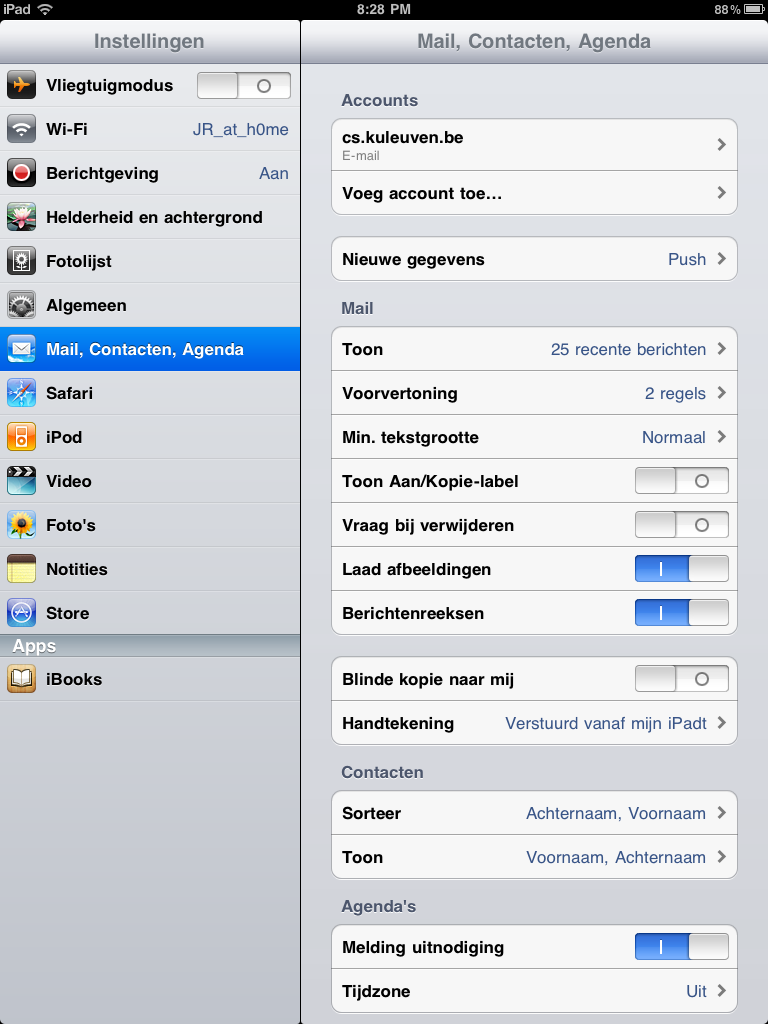
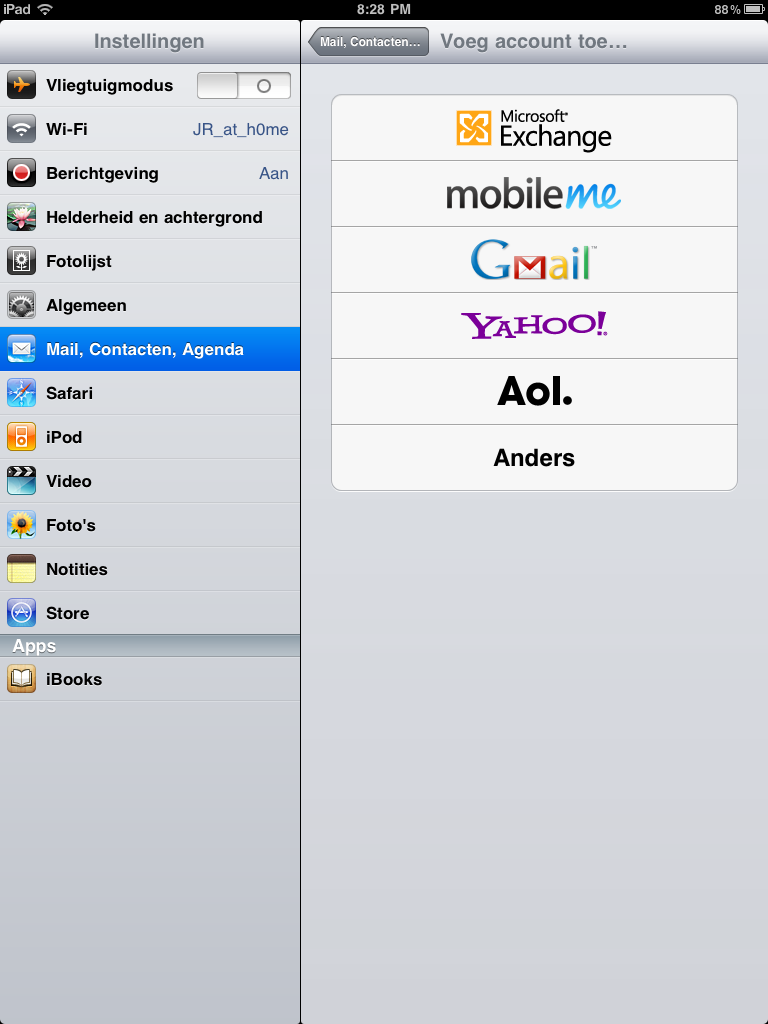
- Touch "Anders/Other"
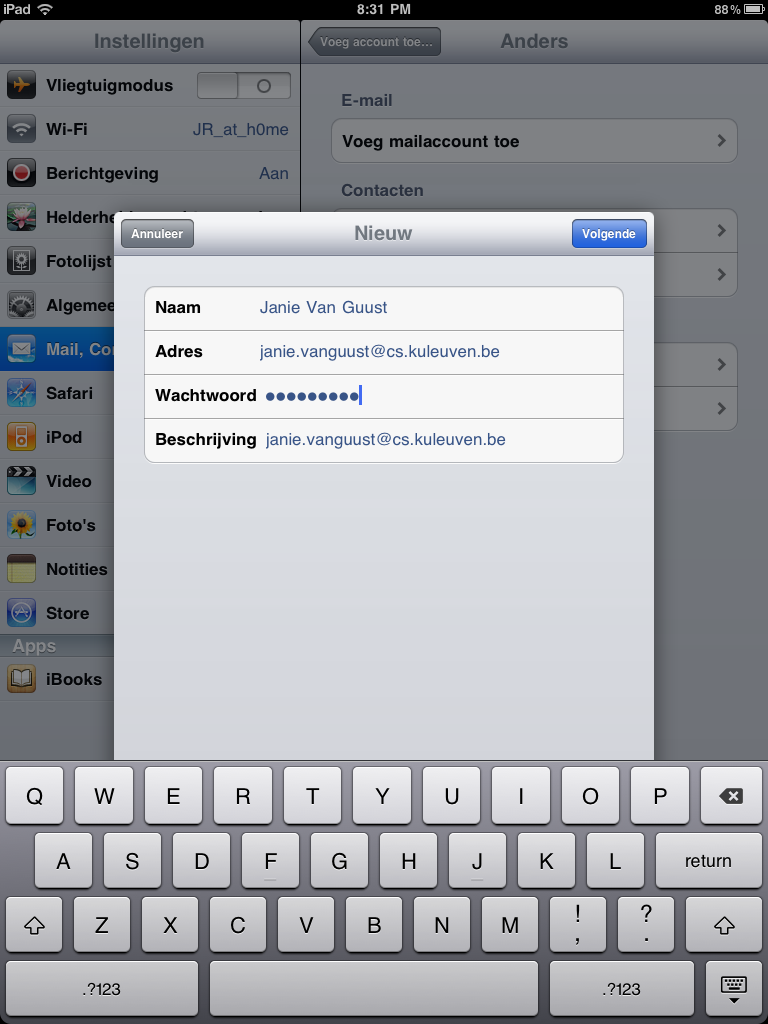
- Fill in your name, e-mail address, and password. Touch
"volgende/continue"
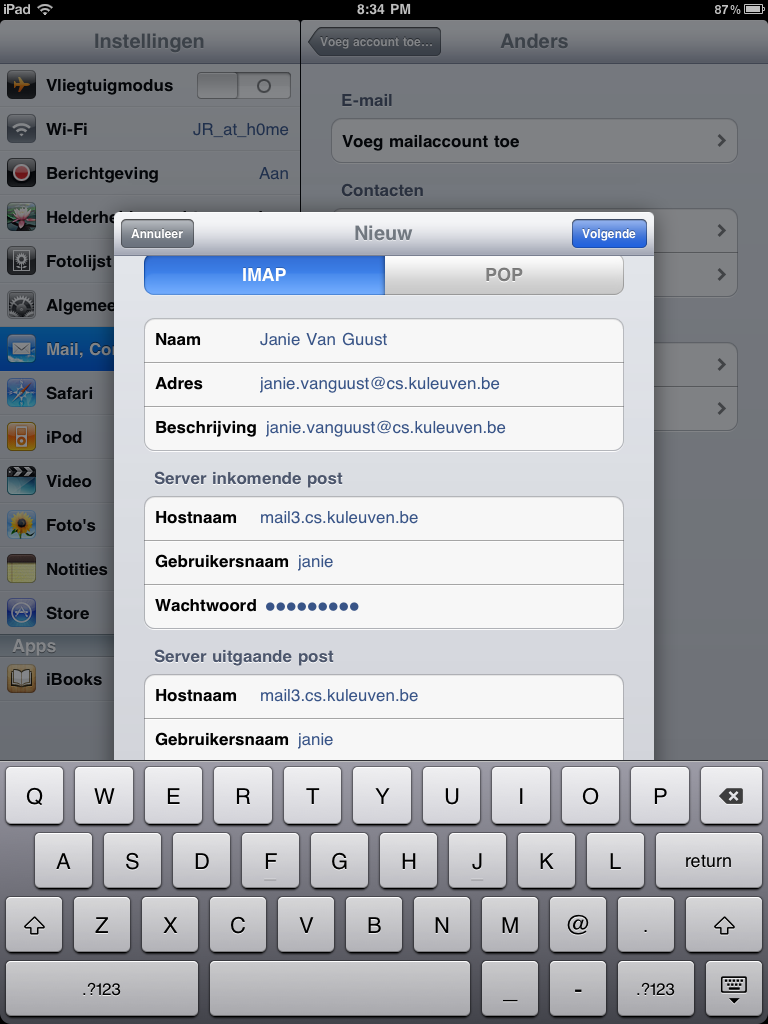
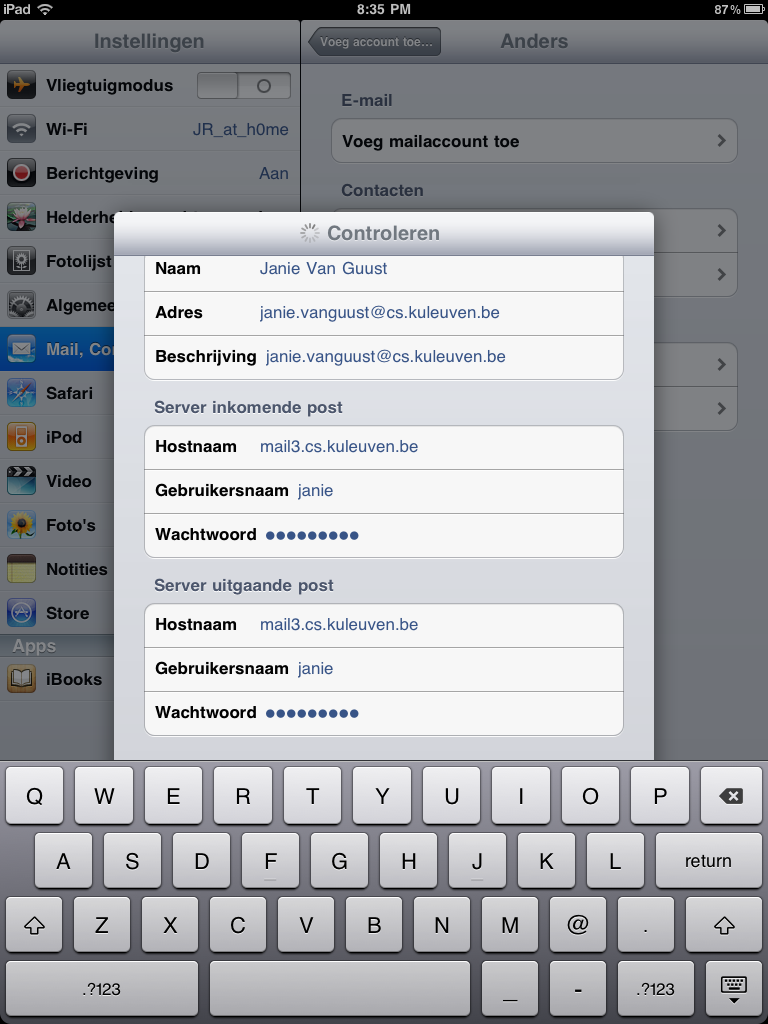
- Enter hostnaam, gebruikersnaam/account and password for
both server for icoming mail and server for outgoing mail. Touch
"volgende/continue".
- Your Ipad is now checking the connections to your mail server and
detecting the ports and protocols to use.
This can take a very long time, five to ten minutes is not exceptional.
Just wait patiently, while the magic happens.
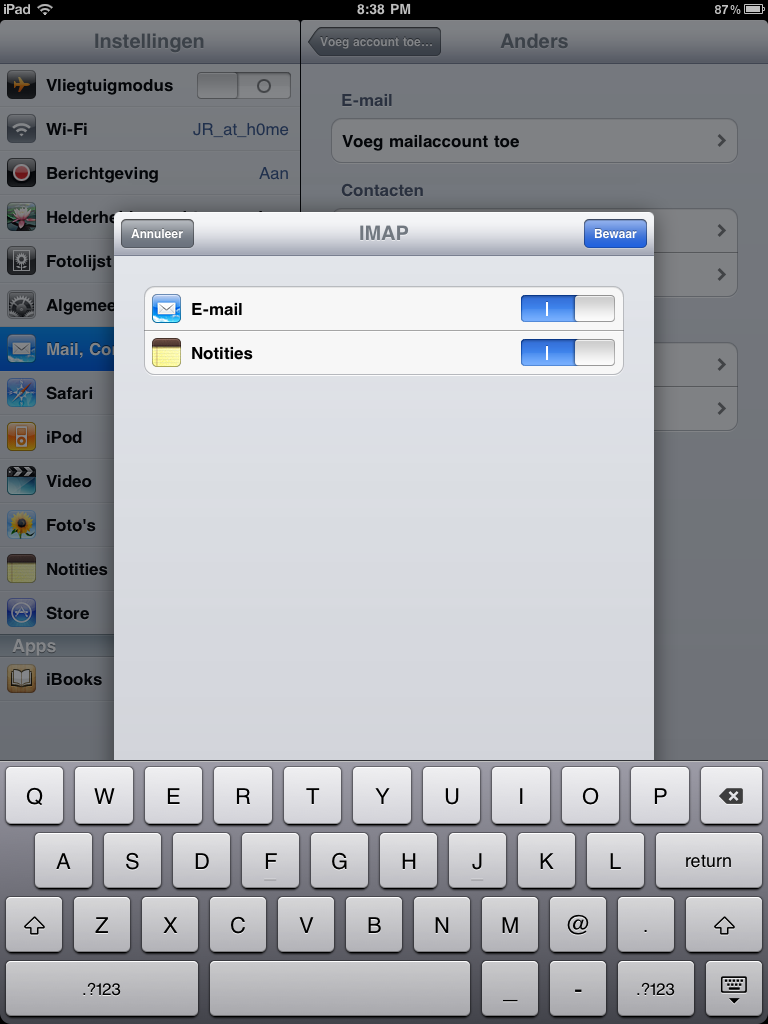
- You can now set the services to be used over IMAP; leave them as
is and touch "Bewaar/save"
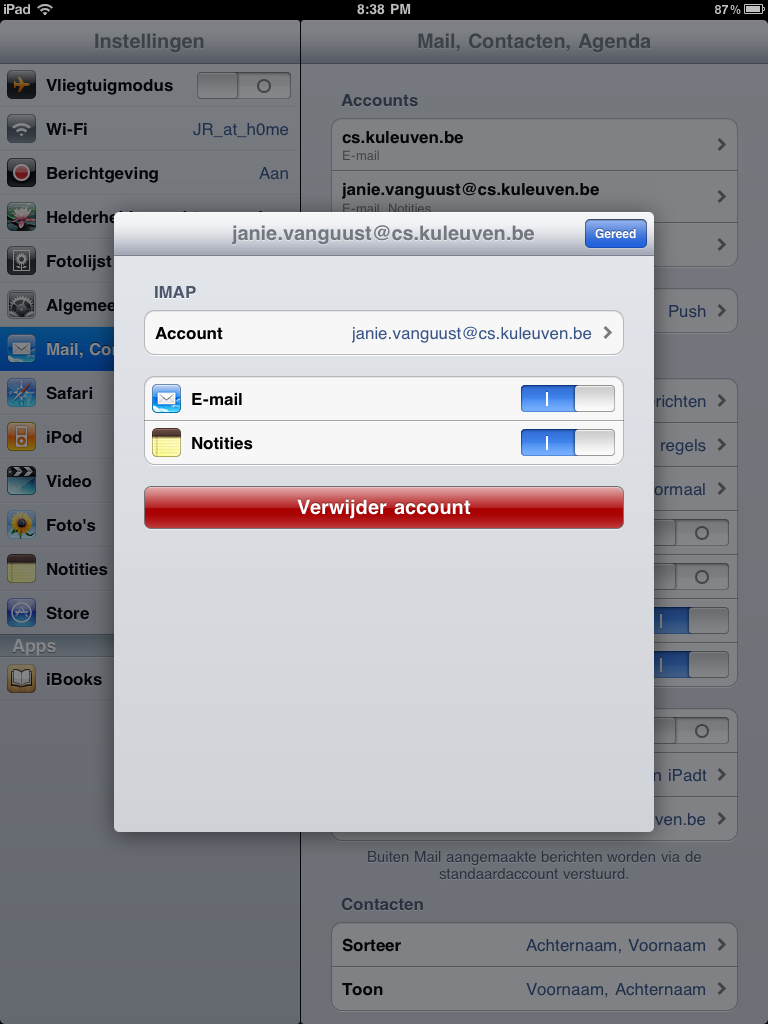
- Finished, touch "Gereed/Done".
Use the "mail" application to access your mail.
Using LDAP to search contacts
Since IOS version 5 for Ipad, you can use the LDAP server of cs.kuleuven.be.Information you need before beginning:
- Your account e.g. steveno
- The password for this account
- The ldap server accesible from the Internet: cs-ldap3.cs.kuleuven.be
- The ldap search
- base: ou=people,dc=cs,dc=kuleuven,dc=be
- description: people, cs, kuleuven, be
- create ldap account
The ldap server requests authentication using your departemental login and password.
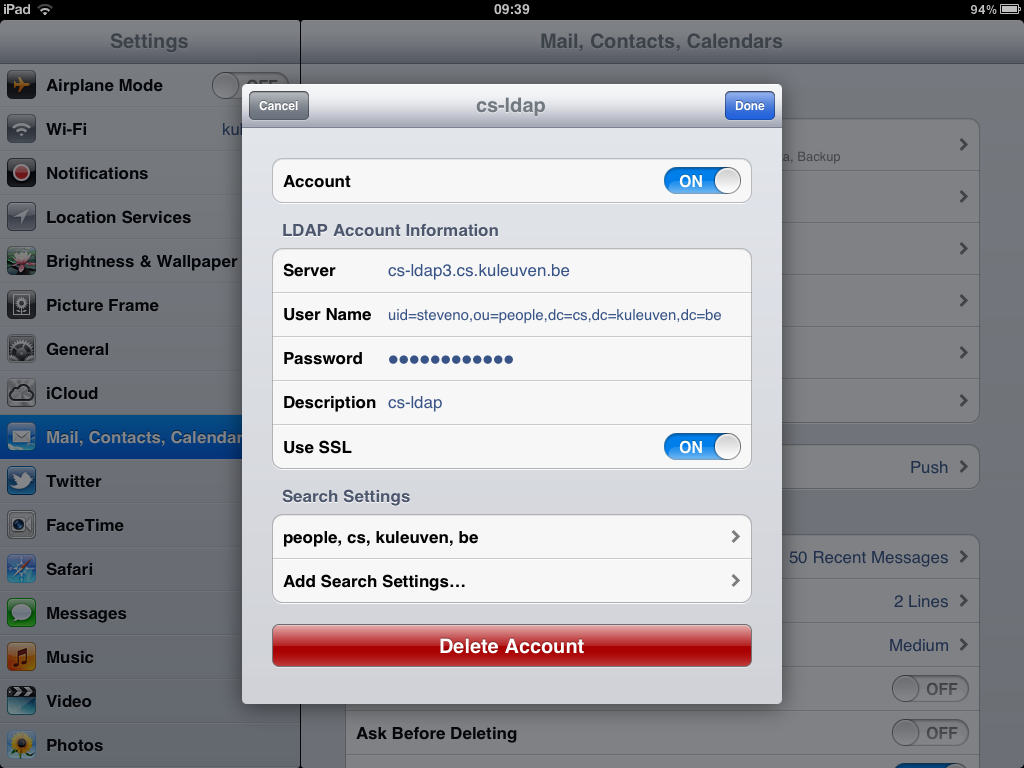
- create search setting for ldap
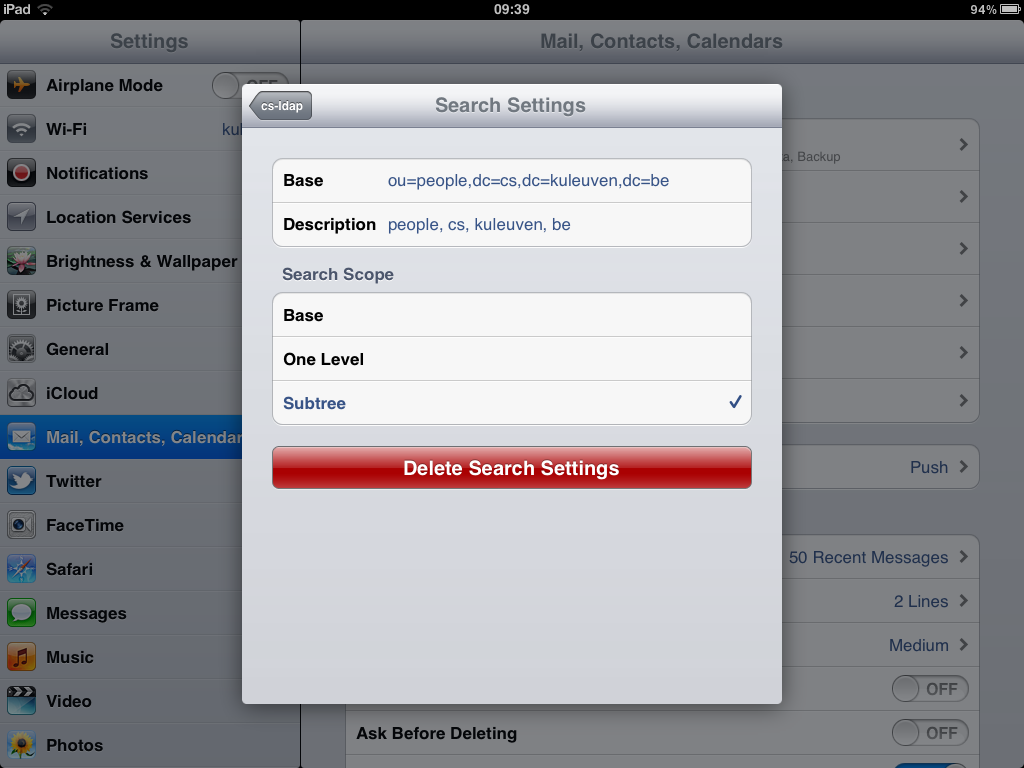
- Now you can search ldap for contacts or mail addresses
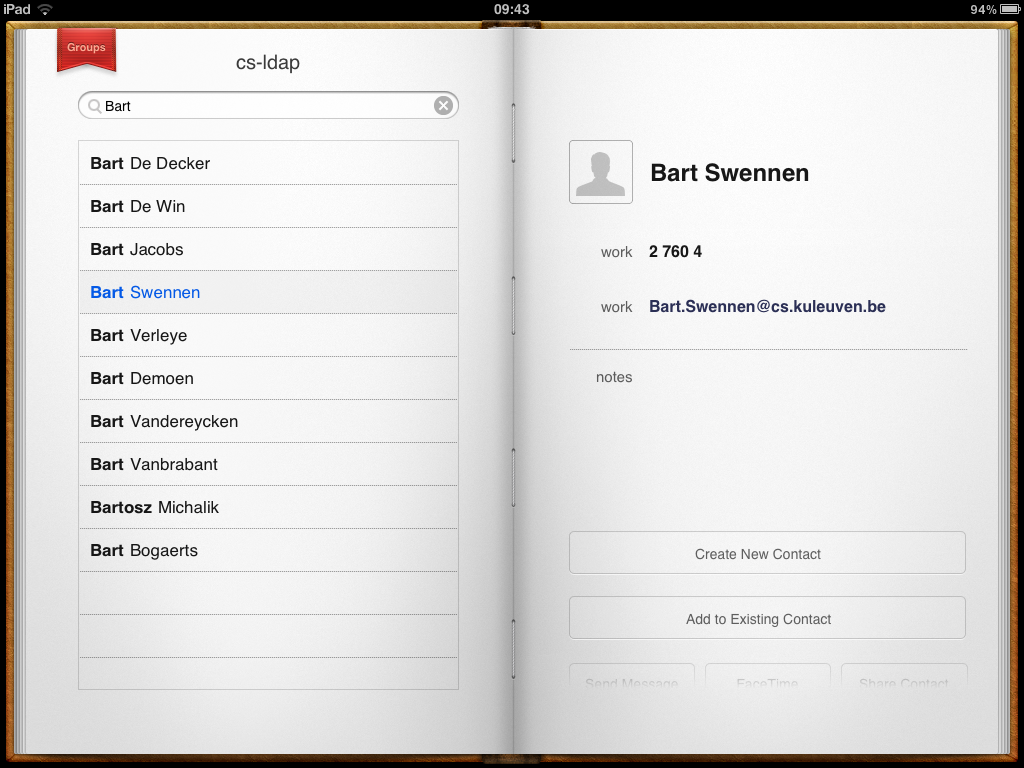
BEWARE
The ipad stores the mail passwords you did enter. It will not ask them again.I did not find a way to see them clear text, but everyone able to access your Ipad will be able to use your mail account.
As a minimal protection you should/must protect access to your Ipad with a four digit access code.
