Sync E-Mail Messages to your Local Computer
Most modern E-Mail clients give you the choice whether or not to make a copy of all E-Mail folders and messages in them on your local computer.
In this way, your E-Mail is accessible without having an active network connection, which might be a good idea if you want to work on/with your E-Mail when on the road and/or away from your normal work-place(s).
The costs of keeping such a copy on your local computer are:
- disk space: all messages are stored on the E-Mail/IMAP server but also on your local disk
- CPU cycles and network bandwidth: to keep E-Mail folders in sync
- complexity: when things go wrong, having a local copy might make it more difficult to determine what exactly is wrong (your connection to the IMAP server or your local copy) and/or to correct it (without disturbing your sync-ed folders).
Whether you like and/or need such a local, off-line copy of your E-Mail is of course totally upto you. In most cases disk space, CPU cycles and network bandwidth are abundant and you need not to worry about them.
Cases where you should avoid keeping such a local copy might be:
- E-Mail clients on system-group administered systems (because these use your departmental home directory and therefore use your departemental disk quota and departemental backup infrastructure)
there really is no good reason to have a local copy of your E-Mail in your departemental home directory: if something is wrong with the departmental network, making the IMAP server unavailable, chances are very high that your home directory isn't accessible either and when everything is working normally, both of them are readily available ... so it is best to store your E-Mails on the IMAP server only because there are no advantages that can weigh against the above costs.
- bad network connection (e.g. when on vacation or other places with limited connectivity)
- old hardware with small disk and/or slow CPU
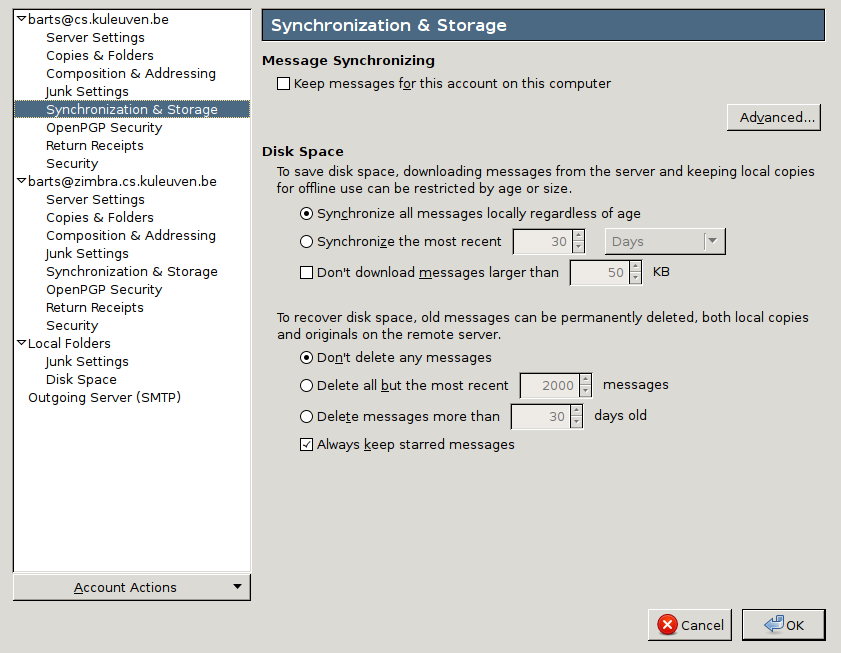
In either case, the E-Mail client setting you must look for in your client configuration is something in the lines of the:
Keep messages for this account on this computer
as shown in this screen-grab of Thunderbird configuration.
What to Do to Setup Sync
Nothing special: just set up your E-Mail client as you would do normally, check it's proper functioning and only then check and/or activate the sync configuration. Your E-Mail client will start synchronizing your E-Mail, which could take a long time of course, but which also should be perfectly interruptable and restartable.
What to Do if You Don't Want Sync
If you don't want to synchronize your E-Mail, take care not to give your password before you have checked that the sync configuration is indeed the way you want.
You can (and probably must) configure everything as directed by normal E-Mail configuration guide-lines, but do not give your password because once you do, your E-Mail client will most probably start right away with downloading each and every E-Mail message and folder ... it will eat up your disk quota and slow down your normal E-Mail interaction because of the initial download.
Once the configuration is complete (but still before giving your password), you will get the chance to look at and possibly correct the synchronization setting.
It shouldn't have to be necessary, but to avoid all possible ways it still could go wrong, after having checked and possibly altered the synchronization setting, stop your E-Mail client and start it again, but still do not give your password before you have double checked the synchronization setting.
Why all these precautions ? Because it is more effort to clean up after it has started synchronizing (see below) than it is to avoid (the start of) the initial synchronization.
What to Do if You Want to Turn Off Sync
The first thing is of course turning off the configuration setting that controls synchronization.
Then you most probably want to clear the disk space on your local computer because the E-Mail messages and folders won't be synchronized any more and thus will have outdated information/structure real soon:
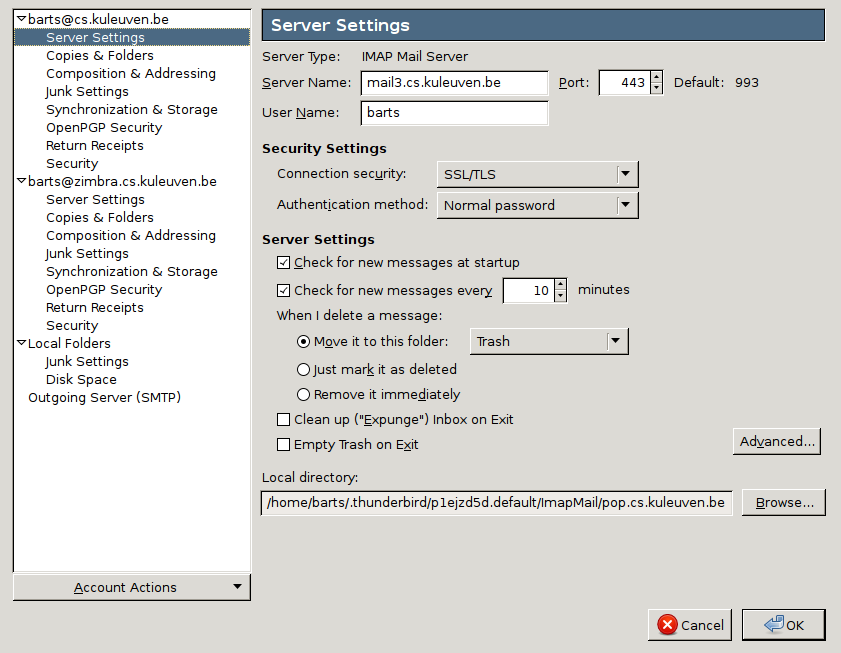
- lookup the local directory where (the copies of) your E-Mail messages and folders are stored
- something in the line of:
Local directory - see in this screen-grab of Thunderbird configuration.
- something in the line of:
- stop your E-Mail client
- delete that local directory and all that's in it:
rm -fr ~/.thunderbird/p1ejzd5d.default/ImapMail/pop.cs.kuleuven.be
The directory in the rm command above (and in the screen-grab) is totally fictitious; yours will be different! - check whether there is an index file or something of that kind in the same directory as that local directory was. Thunderbird keeps a file with the same name as the local directory, but with a .msf extension next to the local directory itself. If so, also delete that file:
rm ~/.thunderbird/p1ejzd5d.default/ImapMail/pop.cs.kuleuven.be.msf
- start your E-Mail client again, but don't give your password yet (you don't let your E-Mail client remember your password for you don't you!?)
- check the synchronization setting again
- only then give your password