

Print from a Windows machine
Note:
the procedure below may differ depending on the Windows version you are running.
Screenshots below are taken from Windows11
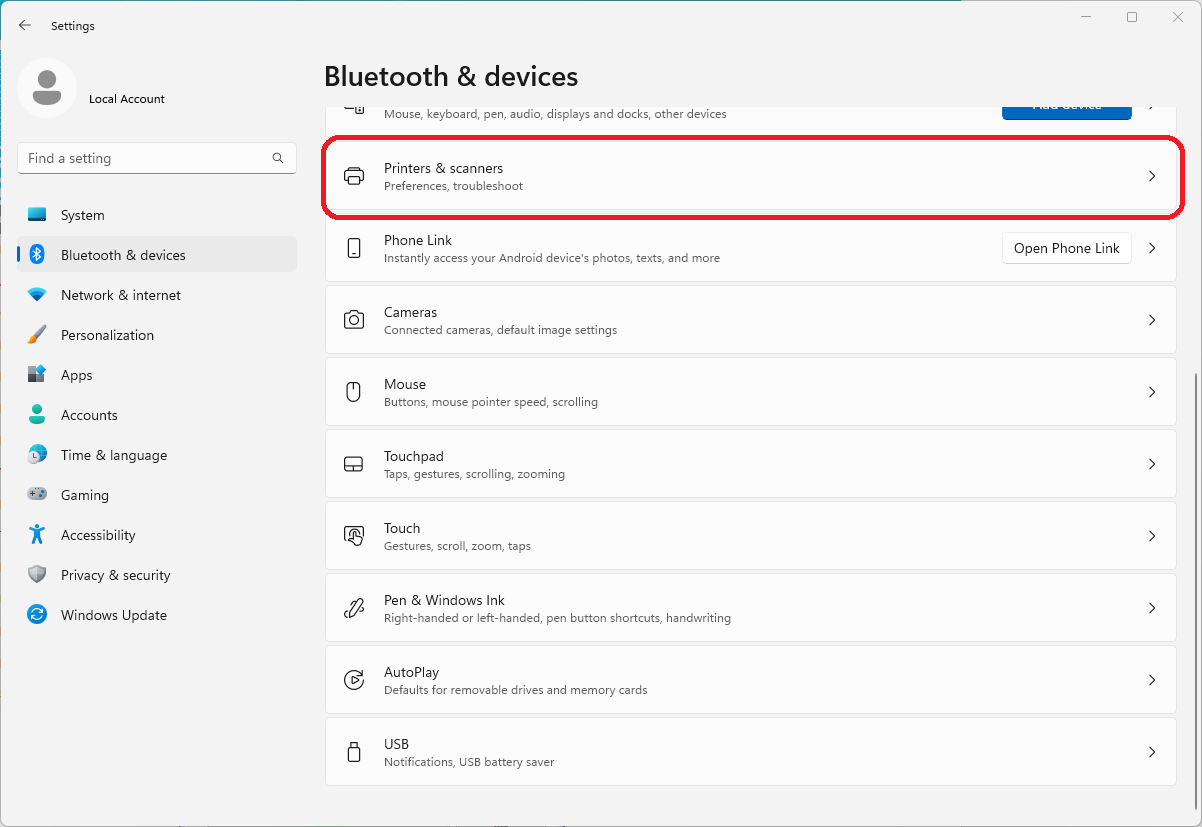
- Go to [Bluetooth & Devices], then [Printers & Scanners]
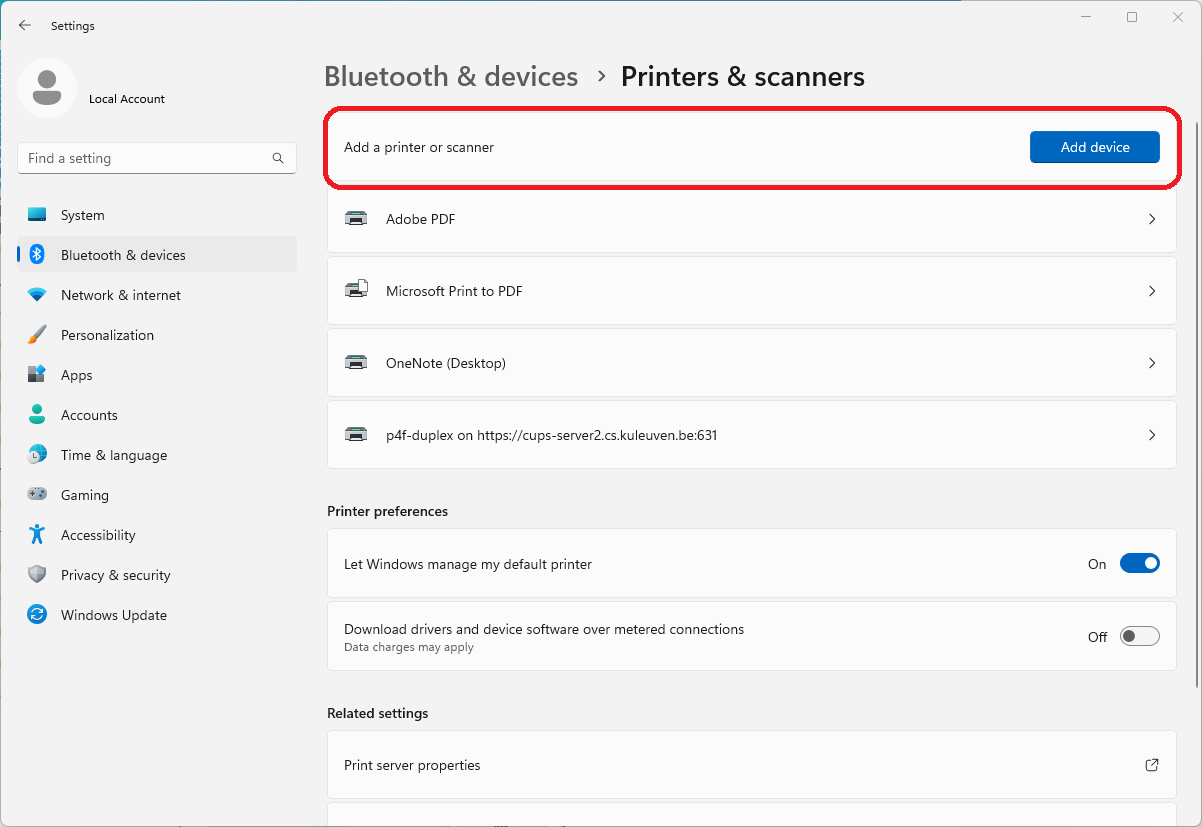
- Click on [Add a printer or scanner]
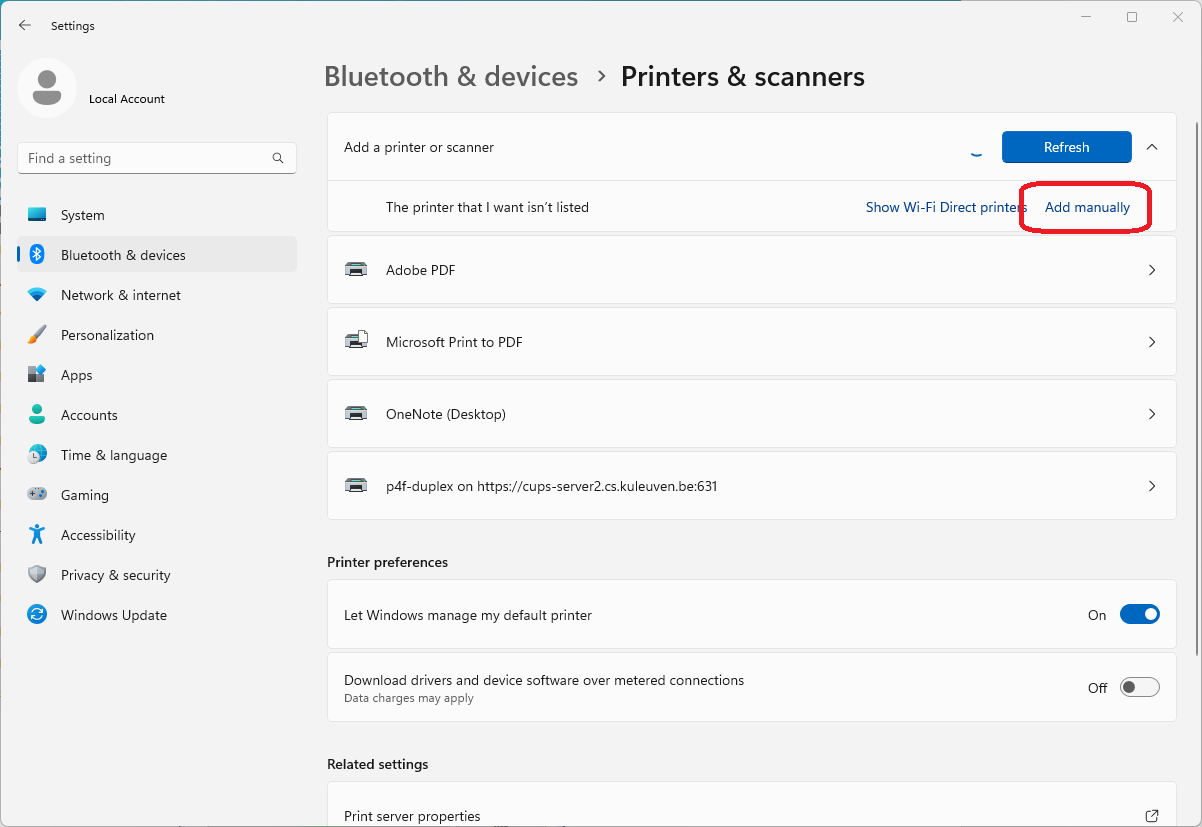
- Click on [Add Manually]
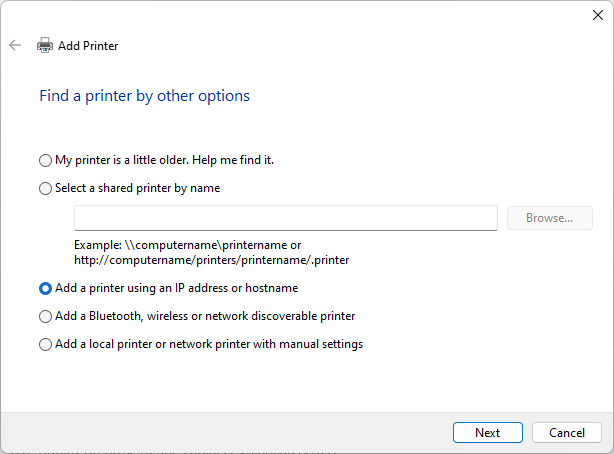
- Select [Add a printer using an IP address or hostname] and enter the printer URL by choice:
- Click [Next]
-
Enter the [IPP device name] (see table)

| Printer | URL |
|---|---|
| p1h | ipps://cups-server1.cs.kuleuven.be/printers/p1h |
| p1i-A3 | ipps://cups-server1.cs.kuleuven.be/printers/p1i-A3 |
| p2h | ipps://cups-server1.cs.kuleuven.be/printers/p2h |
| p3h | ipps://cups-server1.cs.kuleuven.be/printers/p3h |
| p4h | ipps://cups-server1.cs.kuleuven.be/printers/p4h |
| p4i-A3 | ipps://cups-server1.cs.kuleuven.be/printers/p4i-A3 |
| p4i-slide | ipps://cups-server1.cs.kuleuven.be/printers/p4i-slide |
IMPORTANT:
You will have to manually enter some settings. Generally:
PageSize A4
Tray2
For more specific printer settings see printer-specific instructions
