NEW
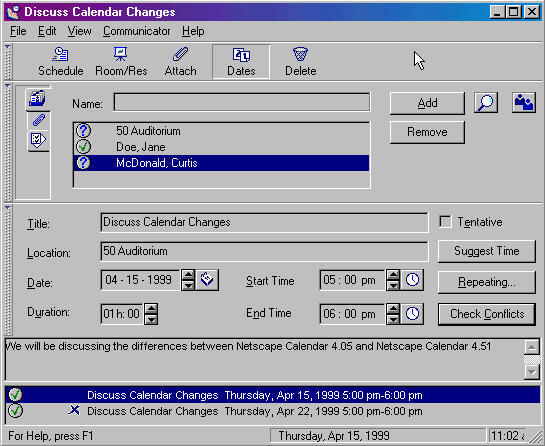
AGENDA ENTRY WINDOW: The new Agenda Entry
window has changed dramatically since Netscape Calendar 4.05. The new Agenda
Entry window in Netscape Calendar 4.51 is very similiar to the New Message
window in Netscape Messenger 4.51 as shown below.
 How to create new agenda
entries.
Go
back to main Calendar Changes page
Netscape Calendar 4.51 New Agenda Entry
Window:
HOW TO CREATE
NEW AGENDA ENTRIES:
-
Double click on a time
slot in the agenda view, click the agenda entry icon or choose "New/Meeting"
from the "File" pull down menu.
-
Type in or search for
the persons and resources you require for the meeting as you did in the
last version of Calendar.
-
Type in a title for
the meeting.
-
Type in a location if
it is not a calendar resource, for example someone's office.
-
Set the date, duration,
start time and end time.
-
If the meeting will
repeating, click the "Repeating..." button. This window is very similiar
to the old version of calendar. After clicking the "OK" button the dates
will be listed at the bottom of the new agenda entry window. If the dates
are not listed, click the "Dates" icon at the top of the new agenda window
to view them.
-
If you need to add
people or resources to the meeting after all reoccurring dates have been
listed be sure to highlight all the dates before adding them. If only one
date is highlighted the additions will only be applied to that single date.
-
Once all the people
and resources have been setup click the "Check Conflicts" button.
-
If you wish to add an
attachment to the meeting click on the paperclip tab and "Attach..." button
just as you would for the Netscape Messenger client.
-
The options area allows
you to set reminders, access level and Importance to the meeting.
-
You have now scheduled
a Meeting.
TOP
OF PAGE
|