Resource Administration
If you are in charge of a conference room or resource in the Calendar system and need to obtain access rights to that resource, write to calmaster@lbl.gov or call the help desk at 486-HELP.
Once you have access
rights or designate rights of a resource you can access the resources through
your own Calendar Agenda. After you have signed into Calendar with your
name and password you can open the agenda of your designated conference
room. Click on File/ Open Agenda/ An Agenda or click the Open Agenda icon
from the toolbar, as shown here.
| The Open Agenda
box will appear,
as shown at right. The third option is "Modify, as designate, the Agenda of:" All people or resources that have given you designate rights will appear in this box. Highlight the desired agenda and click OK. You may open many agendas at the same time. 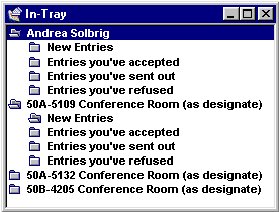 |
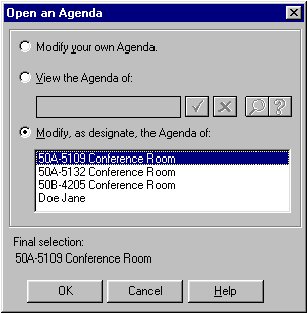
Each agenda that is open will appear as another folder in your In-Tray, as shown at left. |
| When a resource is invited
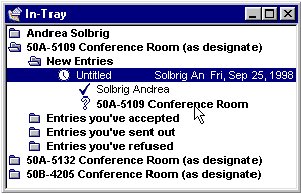
to a meeting, the meeting appears in the new entries folder in the In-Tray,
as shown at right.
Each resource needs to reply to a meeting to confirm that the resource is available. To respond to an invitation click on the title of the new meeting or the conference room and a reply box will appear. After you respond, the meeting will be moved to the corresponding folder in the In-Tray. |
 |
You can open the meeting
and change your response at any time. Make sure to notify all attendees
of any changes in the resources' availability.
© Copyright 1999 Lawrence Berkeley National LaboratoryGo back to main Calendar Changes page
Page Owner: Curtis McDonald
Last Updated: May 12, 1999