E-Mail Client
Sending Messages
Looking up
E-Mail Addresses
HTML messages
Including
HTML links
Including
HTML pages
Creating
HTML messages
Address Book
Local Address Books
Linking to the UT X500/LDAP
server (White Pages)
Receiving Messages
Creating Mail
Folders
Filtering Messages
Logging into Calendar Server
The Calendar Window
Agenda Items
Groups
Daily Events
Daily Notes
Repetitious Events
Designate
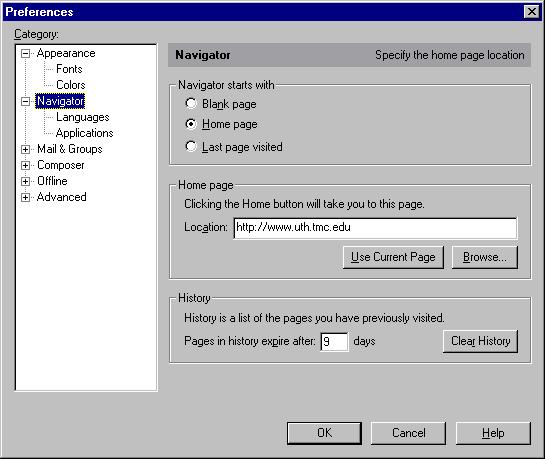
Configuring the Web Browser is rather simple. Type is the Universal
Resource Locator (URL) or the location that you want to contact when the
browser comes up.
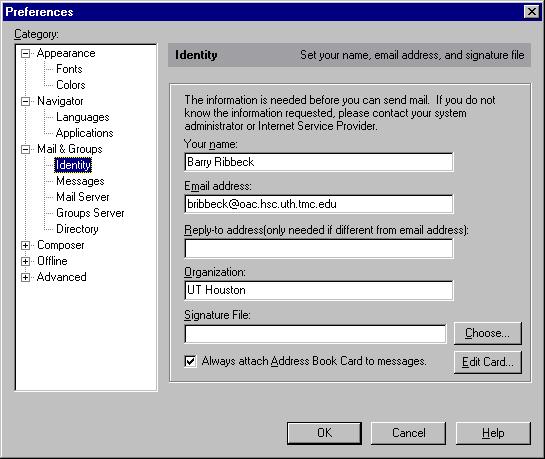
This section of the EDIT/Preferences allows the user to configure How they want their name to appear in the mail message and what to place in the reply to field of outgoing messages. In this section, you can point at a text file or HTML document that you wish to use as a signature file or you can use the Open Standards based V-card . The V-card is configured by each user with their contact information. When the box is checked for Always attach Address Book Card to message, the V-card will be attached to the outgoing mail message. Messages received with an attached v-card can automatically be added to a persons personal address book for quick lookups. Then when addressing a message to someone who is listed in the Personal Address Book, you need only type in the first set of distinguishable characters to address the message, or search the address book(s).
Mail Server (POP/SMTP mail
servers)
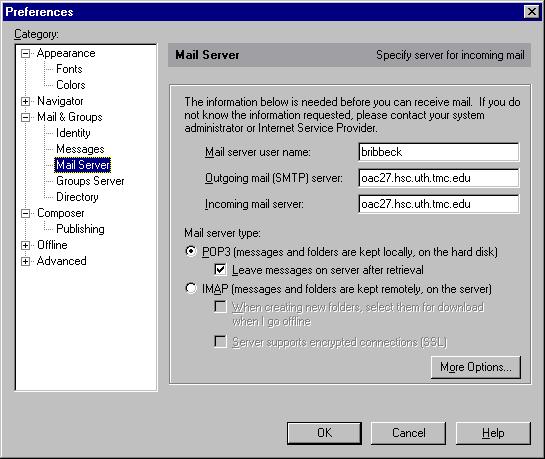
This section of the preferences is for pointing your mail client at your e-mail servers. With (Post Office Protocol) POP mail, there are 2 programs for handling mail. The outgoing mail (Simple Mail Transfer Protocol, SMTP) server is the program that a server uses to send e-mail to other SMTP compliant mail servers anywhere in the world. The incoming mail (POP) server is the program for retrieving e-mail sent to your mail server and placing it in files on your PC. Authentication for users who are allowed to retrieve e-mail from your server to a PC is accomplished via a mail server user name and password. The Communicator Messenger program in Netscape allows you to connect to 2 different type of open standards based mail servers. Both of these servers types allow the user to copy the mail messages down to their local PC. POP mail is client / server based application and is generally the type of choice when the user has only one PC or workstation and all messages are downloaded to that machine. All of the downloaded mail messages are kept on that machine. IMAP is a server bases system where the messages are managed at the server. This is good for when the user has multiple computers where they retrieve their mail and it is not necessary or desirable to save the messages on any of the machine. IMAP is a state full connection, meaning that only one connection into a single mail account is allowed. This means that if the mail program that you are using is IMAP on one machine, then you will not be allowed access to the account from another machine until the connection from the first machine is broken.
Directory (X500/LDAP directory servers)
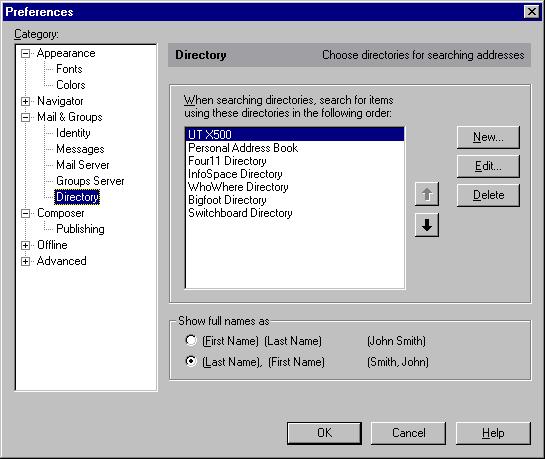
The directory configuration section allows the user to point at Open Standards based X500/LDAP servers. These servers are used to collect, manage and distribute information located in a database structure that is designed to handle hundreds of simultaneous requests very quickly. The standard allows a very deep list of attributes and properties to associate, identify and provide information about those listed in the database. The V-card is closely linked to the LDAP structure. UT OAC maintains an X500 server with an LDAP gateway. This server answers requests for users in the UT White Pages link of the UT home page. Now you can look up users in the messenger mailbox and send e-mail to them and others.
To Add the UT White Pages as a NEW entry, configure the following information in the fields as shown below.
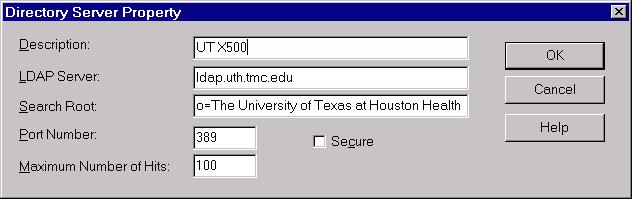
Description: UT X500 (or whatever you want to call it)
LDAP Server: ldap.uth.tmc.edu
Search Root: o=The University of Texas at Houston Health
Science Center,st=Texas,c=US
Port Number: 389
Secure (depends on ldap server, default is disabled)
Maximum Number of Hits: 100
Groups Server (Internet News Groups)
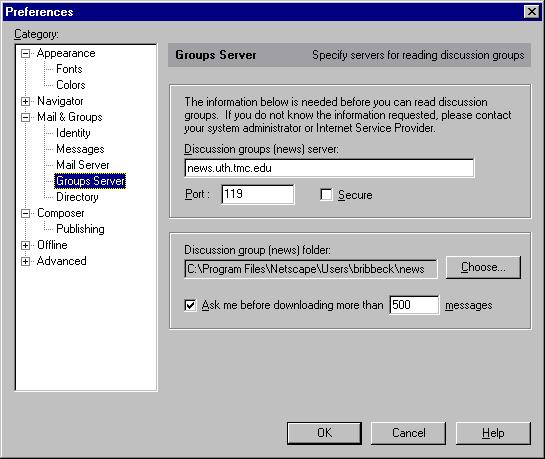
The Groups Server portion allows the user to point at an Internet News server. OAC maintains a news server where the user can subscribe to various discussion groups that contain information of interest. These groups can be personal interest or work related and can contain participants from around the world. This make dissemination of information concerning the topic a global reference structure. News groups are a good source of information and a good search resource. Since communication with the group is Internet e-mail based, this portion of the program is linked into the messenger mailbox.
AutoAdmin
and AutoConfig (Automatic Software update and Configuration)
Netscape Communicator 4.X ships with a new administrative tool called
AutoAdmin. This is a client tool that allows network administrator
to PUSH new versions of the software to the clients desktop thereby eliminating
the need to visit each workstation to install new software. The installation
can be secured with a digital signature so that the client accepts new
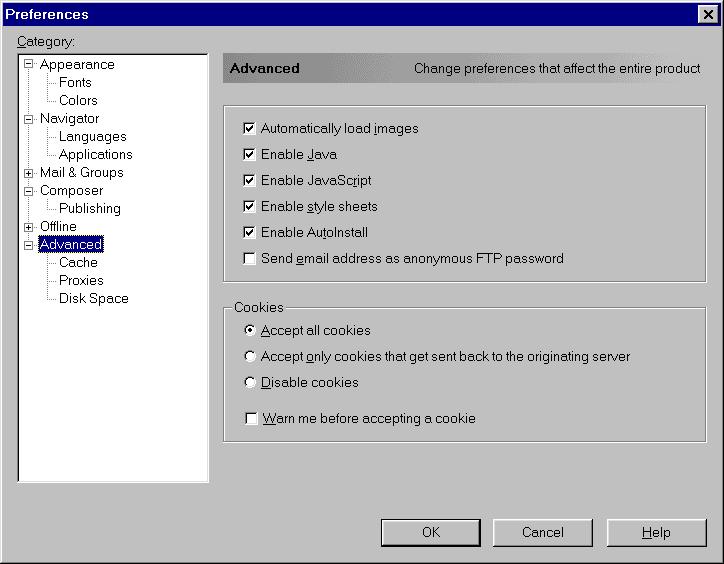
software only from a specified source. The Auto Install checkbox
is found in Edit / Preferences / Advanced and should be set on all
machines. Automatic Configuration is another administrative tool
that allows a client to point at a configuration file located on a web
server to configure the client automatically when the program is started.
This allows centralized configuration. By changing a single configuration
file, the administrator can manipulate the look, feel, bookmarks and almost
200 featues of the client. We are currently working on providing custom
distributions of Netscape that have preconfigured LDAP, bookmarks and general
UT systems help links already set up for the user.
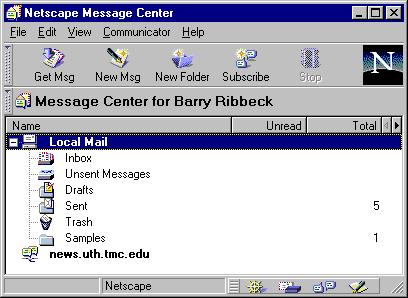
The Netscape Message Center is the e-mail and News client portion of the software. You can access the mail package in a number of ways. You can access it through Start/Programs/Netscape Communicator, through the browser under Communicator /Messenger Mailbox or through the tool bar mail option if you have the Netscape Mail Notification turned on. Once in the messenger, you can create new mail and HTML messages, send the messages that you create and retrieve your email from any POP3 server.
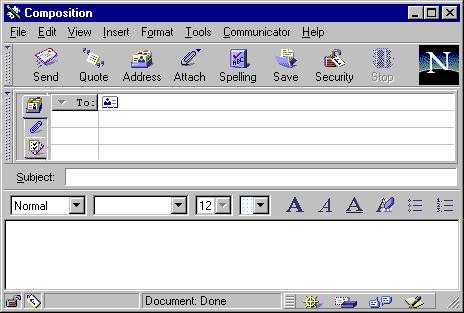
Looking up addresses
Before you can send a message, you must have the e-mail address of
the person you are sending the message to. In the Messenger, you
can search for addresses in the local address book or the in the UT White
pages through the directory server by clicking on Address, choosing a location
and search criteria. If you know the address, you can type it into
the address field. You can also assign cc, bcc, group, reply to and
follow up to.
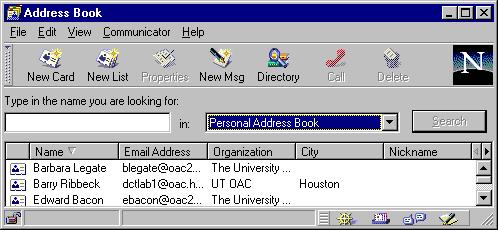
With the address book you can create personal lists of users that you can group or single out to sent e-mail to. You can add users to your personal address book from the directory server and create personal lists of users. This will allow you to make your own personal mailing lists for your department or group. You can look up the recipients or lists name and start the mail message directly from the address book.
HTML messages 
When typing in the body of the message, you can type plain ascii text
or you can use Hyper Text Markup Language (HTML). This will allow
you to enhance your messages with web functions such as bulleted lists,
Bold fonts, Italics, Underlined, Horizontal Lines,
and Tables. These are not supported under standard ascii. You
can also imbed jpeg images, animation and other HTML enhancement. To test
this, click on Fagon's Craw Chef above and drag it into your e-mail message.
The animation should continue in your mail message and will be sent as
such to the recipient.
Including HTML links
If you find a web document that you wish the recipient to look
at, you can type in the URL and the Messenger will recognize it as a click
able link so that all the recipient can jump directly to the site by clicking
on the link.
Attaching HTML pages
If you wish, you can send the page directly to the recipient in total,
by sending it as an attachment. This is very useful for example when
a recipient needs to know the location of a web form. You can send
the recipient a mail message with the web form that they want to fill out
directly in their Messenger and submit it from within the message.
This is done by clicking on the attachment button, choosing Web Page and
typing or copying in the URL for the document that you want to attach.
You can try this by finding an online web form and sending it as an attachment
to yourself.
Receiving Messages
Managing E-mail
Netscape gives the user a number of different ways to manage incoming
and outgoing mail. In the Netscape
Message Center above, a number of default mail folders are set up.
These are the Sent folder for holding copies of messages that have been
sent, Draft folder for draft messages, Inbox for default incoming mail,
Trash , Samples and Unsent folders for holding those types of messages.
You can use the file option in Messenger to move messages manually from
one folder to another.
Creating Folders
From the Netscape Message Center, you can create additional mail folders
under local mail by right clicking on an existing folder and choosing new
folder.
Filtering Messages
Netscape Messenger has a filter feature for handling incoming mail.
This feature allows you to create a boolean rules that examines an
incoming mail message and files it into a particular mail folder automatically.
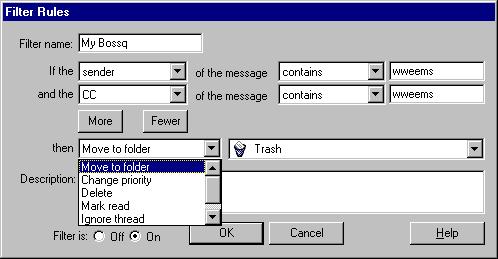
To build a filter, click on Edit/Mail Filters then New. The windows
below will appear where you can select the filter rules that will identify
the incoming mail and allow you to decide where to file it, delete it,
or change its properties. The filter below called My Bossq takes all messages
that have my boss's user name in the sender or CC field and moves them
automatically to the trash mail box (not recommended when looking for a
raise)
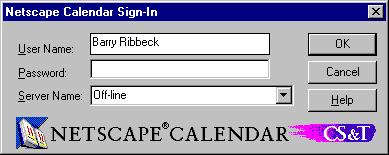
Once started, the user can Schedule and track Daily Tasks, Agenda Items, Group Agenda Items, Daily Events and Daily Notes. The calendar can be viewed by day, week and month with very fine or very course time delimiters. The user can define who can edit or view their calendar, and can modify their own user information and password. There is a separate window called the In-Tray for managing invitations from other users who can connect to your calendar server. It is not necessary to be set up on the Calendar Server to utilize simple calendar features. To use the calendar in this way, simply set up an Off-line calendar as shown above. Any time a user creates an Off-line calendar or works Off-line, the information is syncronized on the Calendar Server the next time they connect. In other words, any entries created on the calendar now will not be lost once the Calendar Server is brought up.
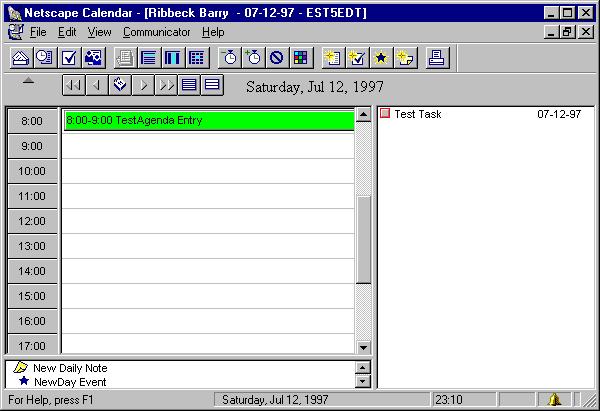
Above, the user has logged on and the calendar window has loaded with the Day view. The time delimiter is 1 hour and an agenda item has been scheduled from 8:00 AM to 9:00 AM called Test Agenda Entry. There is one Daily Note, one New Day Event and one item in the Task list.
Agenda Items
An Agenda Item is a task or event that is scheduled for a specific
time during the day for a specified duration that involves the allocation
of resources both human and material. The Agenda Item can be a regularly
scheduled event such as a weekly staff meeting or a holiday and can involve
a single person, entire group or selected individuals. When you create
an agenda item on the calendar server and add others to the agenda, you
issue an invitation that will show up on the other party's agenda for their
acceptance or rejection (only implemented with a calendar server running).
This type of agenda item is called a group agenda. The person who creates
the agenda item has the ability to check for schedule conflicts with others
on the server who are invited to participate in the event and determine
the need to schedule at that time. This greatly reduces the problems
with coordinating meetings with other peoples schedules. Once scheduled,
the agenda item shows up on the invited's In-Tray as an agenda item proposal.
If the agenda pertains only to the user, then the item is simply a scheduled
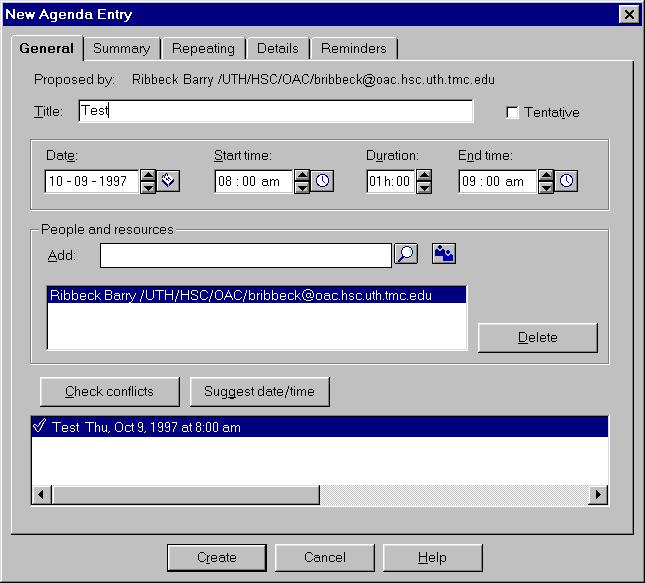
event. Seen below, there are a number of detail that can be configured.
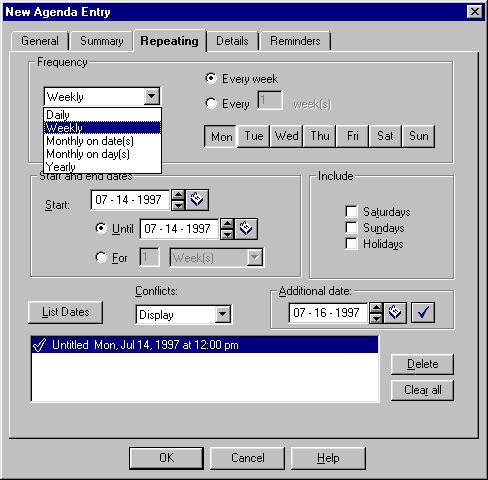
Time, date,duration, and invitations are set and issued from the General
Tab. Location adn priority are set under Summary. The Repeating
tab sets how and when you wish a regularly schedule event to show up
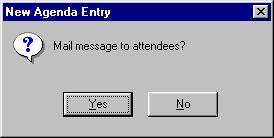
When submitting an agenda to a group the user has the option of e-mailing the message as well as scheduling in the calendar. This is usefull for sending meeting notices to those users who do not have an account on your calendar or who's calendar server is not linked to yours.
Groups
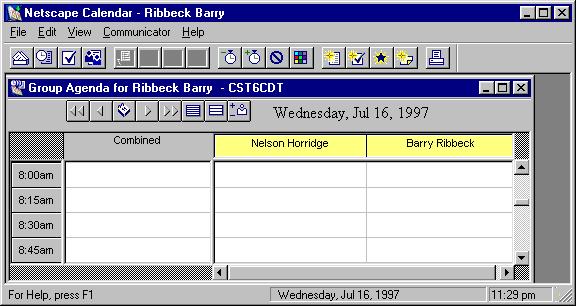
The user can create groups such as an action group, committee or special
interest group and you can issue invitations to the entire group at once.
Group members are picked from the database and added to the group list.
A special group Agenda Item is created and the members can be invited individually
or collectively. Search features, invitation features and conflict checking
are only available when on line with a calendar server.
Day Event
A Day event is a scheduled event that takes up the entire day.
Instead of blocking out the entire hourly list with a single item, a day
event shows up below as a single item. In this way the user can still schedule
hourly items within the days event and reserve the day in the calendar
for the event itself at the same time. Invitations to others for
a Day Event are exactly the same as those in an a Group Event.
Daily Note
A Daily Note is basically commentary that is added into the Agenda,
but that doesn’t fall under Tasks, Day Events, or Agenda Entries. These
Daily Notes will appear in the Notes View of your Daily and Weekly Agenda
pages.
Repetitious Events
Sometimes events occur on a regular basis, such as meetings, a lunch
break, a class or some other scheduled event. In this case, the user
can set the event in the calendar once and replicate it on a periodic basis.
As with any entry in the calendar, the user can set reminders, add detailed
text or attach a file to the event, set the location of the event and make
the event public or private as appropriate on their calendar.
Designate (Only available when
connected to a Calendar Server)
A designate, as defined in the calendar program, is a person or persons
identified by a user who is given specific rights to view or modify the
users calendar. An example would be an administrator's secretary
who requires write access to the administrators calendar so that appointments
can be added or proposed meeting times verified for conflicts. In
this case the administrator would designate the secretary with read and
write permissions to his calendar.
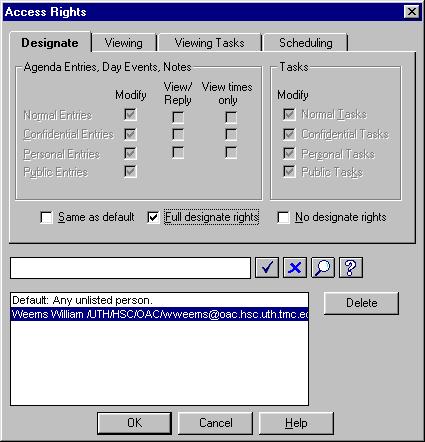
As shown above, the designate can be searched for in the calendar server database and the appropriate access granted to viewing or scheduling.
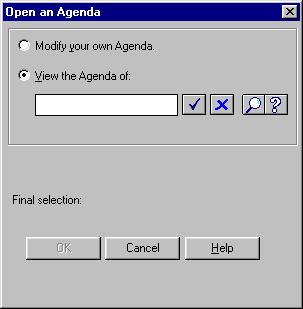
If you are a designate for another user, you can view / modify the designators
schedule when you open a new agenda item. If you do not have designate
rights to the users schedule, you will not be allow view or change the
schedule as is permitted by the designator.
Online Help
Please be aware of the availability of online help. Many of the
individual windows displayed above contain help buttons that will lead
the user directly to the online help for that area. There is also
general online help available on the tool bar. Paper documentation
is available directly from Netscape
and from many of the local book stores for users who prefer paper references.