

OpenVPN Client Configuration on Microsoft Windows
Installation
For users of a system group administered LUNA.SET laptop, the installation is already done and the configuration files are already downloaded. You can skip to Starting OpenVPN.
Other users should download the latest installer from https://openvpn.net/community-downloads/ and install the downloaded program:
- If you have a previous version installed, you should first uninstall the old version.
- Make sure to install using an account with Administrative Rights (e.g. install with RunAs)
- Install the following components:
- OpenVPN User-Space Components
- OpenVPN Service
- TAP Virtual Ethernet Adapter (yes, we know: on Linux this is the TUN)
- OpenVPN GUI
Configuration files
- Download the ovpn file of your flavour and save locally.
- Copy or move the downloaded ovpn file to c:/program files/openvpn/config .
- most probably you will be asked to authenticate with an account with Administrative Rights
- there is an import function but it does not work exactly as you would hope for: (extra) routes cannot be set for/by an imported configuration, most probably because of an admin-rights issue, thereby defeating (at least partly) the purpose of a VPN.
Starting OpenVPN
Steps to start your vpn connection:
- Launch the vpn client by clicking the desktop shortcut.
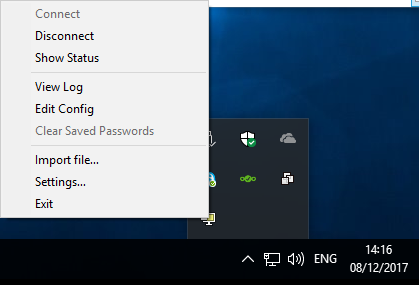
- Right click the newly created openvpn-network icon or double click the icon.
- If you right clicked you should select connect, this will pop up a login screen.
- If you double clicked the login screen will pop up.
- Log in using your departemental login, based on your first name not your unumber.
- You will get a message telling you the connection was a success or not.
- A successful connection will result in a green network icon.



How to test and/or troubleshoot your VPN
You can test your VPN connection by visiting the internal webserver. If you can't visit the page or are having other problems with your VPN connection go to OpenVPN troubleshooting. Here you can find information about troubleshooting your connection and some other diagnostic tips.
