Hotspot on Linux Laptop
You can use your Linux laptop to create a personal wireless network. In this way, you can use your laptop as a gateway for other devices to reach the internet (e.g. your mobile phone or a tablet or ...)
The only requirement is that your laptop has another way of connecting to the internet, which most probably is the cabled network interface. You cannot use the same wireless network interface for both connecting to the internet and providing a hotspot but you can use a second wireless interface (e.g. a USB dongle) to do so.
First create a hotspot connection/network:
- you will need the device name of the wireless network interface you want to use for your hotspot - you can/must look it up with:
nmcli dev
- create a
Wi-Fi Hotspotconnection - there are signs in the GUI that you are supposed to be able to do so entirely from the standard Ubuntu Wi-Fi Network settings window, but that doesn't always seem to work - what does work is:
- open the network connection manager with the command:
nm-connection-editor - use the + in the lower left corner to create a new Wi-Fi connection
- fill in the details as shown on these screenshots - the important items are:
- a good connection name
- a good SSID
- Mode must be Hotspot
- Device must be your wireless network interface
- Security must be WPA&WPA2 Personal
- Password must be long (and strong ;-) enough
- it must be Shared to other computers
- it might be a good idea to 1) on the General tab: make this network not available to other users (of your laptop) and 2) on the Wi-Fi Security tab store the password only for yourself
- press Save and close the connection editor
- open the network connection manager with the command:
Once created, you must activate the hotspot:
- the interface you want to use must be activated, so you might need to turn on your wifi first and then:
nmcli con up my-hotspot ifname my-device
There might be a message about the password, depending on whether you stored the password for all users or not. It seems to work anyway - but in case it doesn't, you can also add the --ask argument to provide the wifi-password. It is currently not clear whether the password you provide while activating must be the same as the one you configured when creating the hotspot or whether it overrides it.
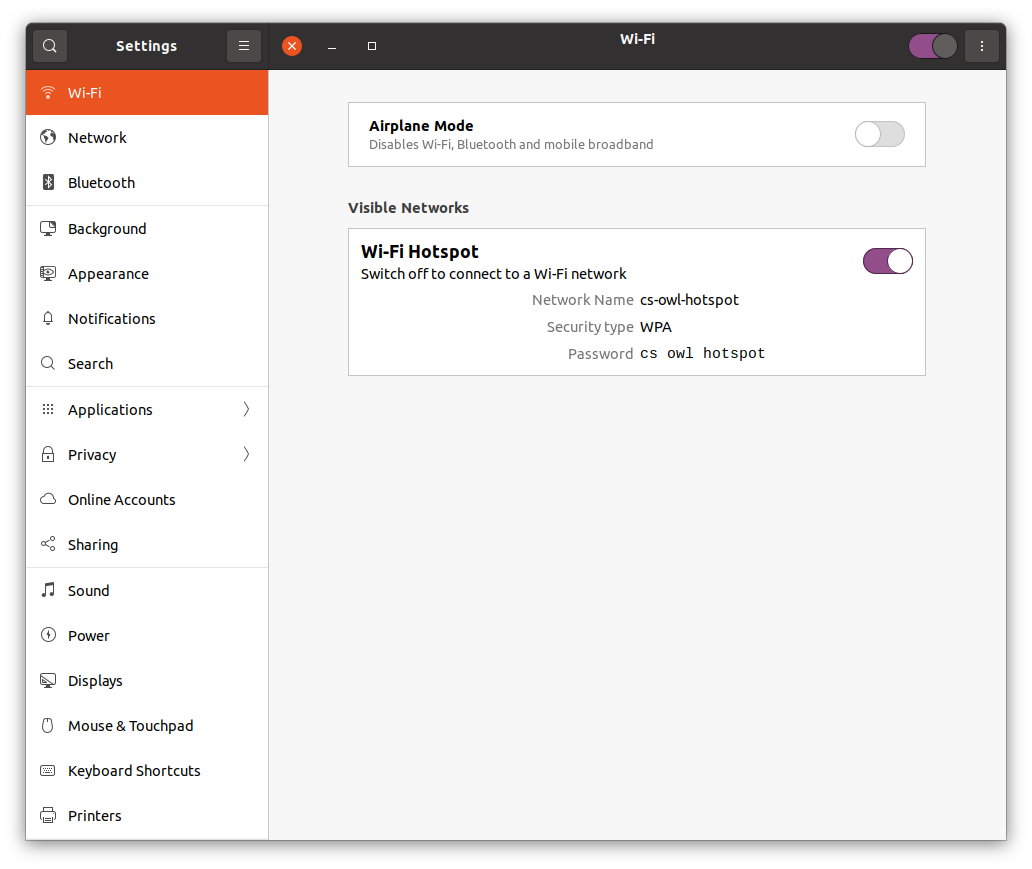
Once activated, you can use the wireless network that is provided by your hotspot on any device you want to. You can check if the hotspot is active on the standard Ubuntu Wi-Fi Network settings window but also with:
nmcli con
Do not forget to de-activate the hotspot once you are done - either on the standard Ubuntu Wi-Fi Network settings window or with:
nmcli con down my-hotspot
CLI only
Instead of using the nm-connection-editor as shown above, you can also create the hotspot connection with:
$ nmcli con add type wifi ifname my-device con-name my-hotspot ssid my-hotspot
$ nmcli con modify my-hotspot 802-11-wireless.mode ap 802-11-wireless.band bg ipv4.method shared
$ nmcli con modify my-hotspot wifi-sec.key-mgmt wpa-psk
$ nmcli con modify my-hotspot wifi-sec.psk "my strong password"
Connections created in this way, can still be viewed and changed via the nm-connection-editor GUI and vice versa.
There is also a text/curses-based interface nmtui.
Turning the Wi-Fi network interface on/off and checking its state can be done with:
$ nmcli radio wifi [ on|off ]
Wi-Fi Passwords
The Wi-Fi passwords that are stored for all users, can only be viewed/changed via the Network Manager API (GUI or command line).
The Wi-Fi passwords that are stored for you only, can additionally also be viewed/changed with the Passwords and Keys app - you can access it via the Ubuntu Activities interface or with the seahorse command.