

Internationalization / I18n
Introduction
Internationalization is more than just displaying international characters. But that is an (important) issue to start with. Besides (correctly) displaying the characters, I18n also deals with language, format of currency, time, date, etc.
There are different levels of support that a system can have for I18n:
- level 0:
- no internationalization is supported
- the software is not 8-bit clean (ignores or removes that bit or uses it for its own purposes)
- level 1:
- the software is 8-bit clean (needed for the rest of this document)
- character sets: iso-8859-1 (ISO Latin-1), iso-8859-15 (almost the same but with EURO symbol), UTF-8, ...
- level 2:
- the software is locale sensitive, the user can change the format of numbers, currencies, time, date, ...
- (alfabetic) sort order is changed !
- level 3:
- user interface is shown in the language of the user (standards: POSIX/UniForum, XPG, ...)
- Example (actually level 2 and 3 together):
- level 4:
- East Asian languages support, multi-byte codesets (i.e. more than 256 characters)
$ date
Thu Oct 17 10:12:34 CEST 2013
$ LC_TIME=nl_NL.utf8 date
do okt 17 10:12:34 CEST 2013
Our Linux systems are level 3 and support large codesets (e.g. utf-8), but not all internationalisation features (e.g. locales) are installed. The following locale/language is always available:
LANG="en_US.UTF-8"
LANGUAGE="en_US:"
How-To:
What should you do to set your I18n setting consistently ... for the exact details, see below:
- set the LANG variable for /bin/sh
- set the LANG variable for the interactive shell(s) you regularly use
- if you use xterm, configure it to use your I18n setting
- if you want to use a Compose/Multi_key key to enter international or other 8-bit characters, configure it using the key of your choice
Log out and back in again and check whether your applications (firefox, thunderbird, emacs, gvim, ...) behave as expected.
Display your current I18n setting
You can query your current I18n setting with the command:
locale
More information can be found with: man locale
Available I18n settings
Not all possible locale's are configured on all departmental computer systems. Which locale's are available on the machine your are working on, is shown by the command:
locale -a
If you use some other locale, you will most probably get warnings/errors and/or it won't work as expected.
If you (really) need a locale that is not available, you can ask helpdesk to install/configure it.
Configure your I18n setting
You can configure your I18n setting with the environment variable LANG. You can/should assign one of the available locale's to it (see above).
Setting the LANG variable must be done for each shell separately because they all use different configuration files.
Moreover, some shells use more than 1 configuration file because they have support for (distinguish between) login and other interactive or remote shells.
You should configure the LANG variable in all of the configuration files of a shell so that you have the same I18n configuration in all circumstances:
- /bin/sh: set up your preferred locale:
- in $HOME/.profile:
LANG=en_US.utf8 ; export LANG
- in $HOME/.profile:
- /bin/bash: set up your preferred locale:
- for login shells in $HOME/.bash_profile
- for other (interactive and/or remote) shells in $HOME/.bashrc
- both using the same syntax as shown above for /bin/sh
- /bin/csh: set up your preferred locale:
- for login shells in $HOME/.login
- for other (interactive and/or remote) shells in $HOME/.cshrc
- both using the same syntax:
setenv LANG en_US.utf8
I18n and ssh, perl, vi etc.
-
Most tools (firefox, thunderbird, gvim, ...) recognize the default system settings, but allow you to set/overrule them in their own context.
-
When using ssh, the I18n configuration of your environment on the local machine (the one you start the ssh command/connection on) is also used on the remote machine, unless it is overwritten explicitly in the shell configuration files on that remote machine.
Whether this is an advantage or disadvantage, depends of course on the exact configuration of local and remote machines and on your intended use.
-
Some tools (like perl, vi, ...) do automatic code conversion: they accept input in a different character set, but convert it automatically to the character set your locale is configured for.
Again: whether this is an advantage or disadvantage, depends of course on the intended use.
-
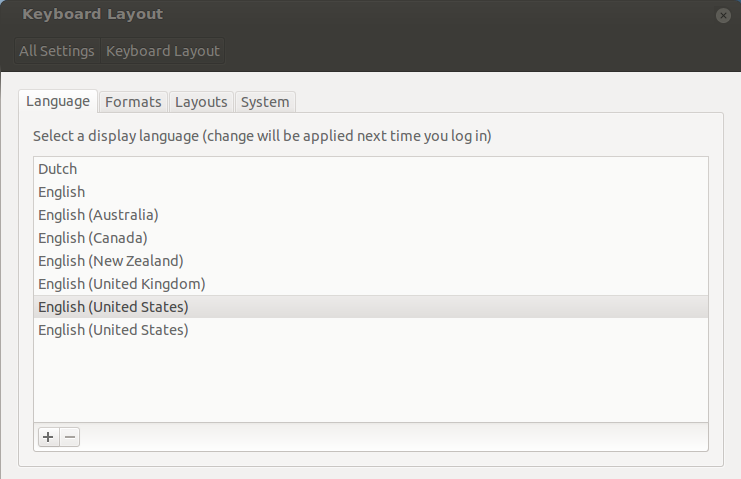
Some Linux GUI's allow you to check and set some I18n parameters:
- System -> System Settings select keyboard layout under personal:
- by selecting Layouts:
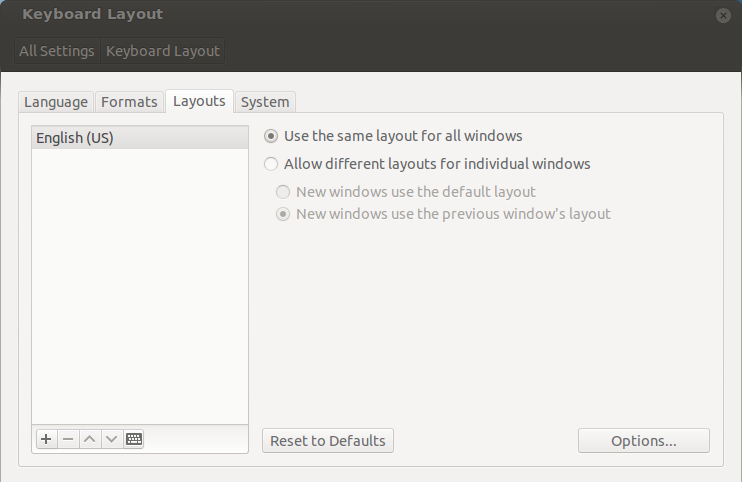
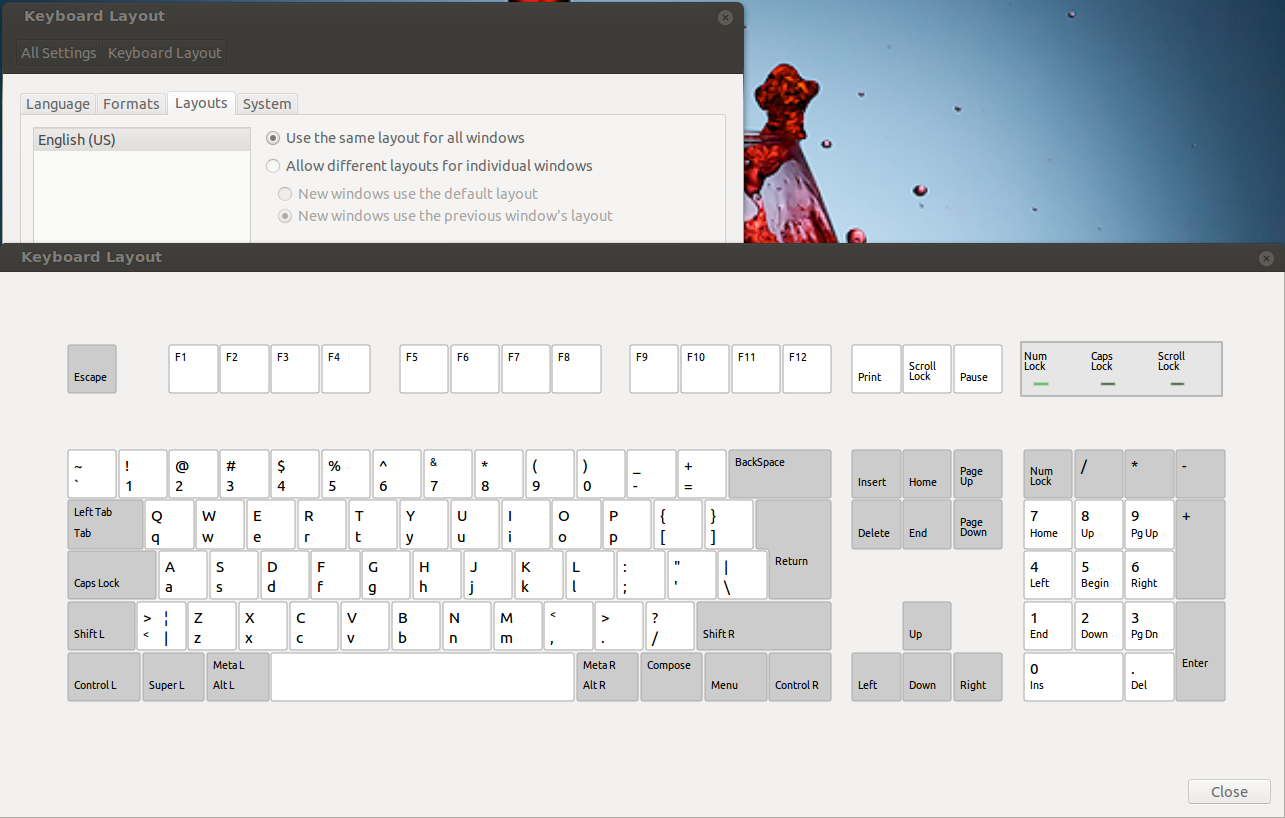
- With the options tab you can control some key bindings (e.g. Compose key) and by clicking on the keyboard icon you can see your current keyboard layout:
- System -> System Settings select keyboard layout under personal:
-
You can have some influence on the character set by means of either built-in functions or by means of the
recodeand/oriconvcommands (take care when using these, you can really mess things up):cat input.txt | recode l1..u8 > output.txt cat input.txt | iconv -f l1 -t utf8 > output.txt
The recode and iconv commands convert from one character set to another ... in the example above from iso-latin1 to utf-8 ... see the manual page for more information.
Additional I18n settings
Besides the configuration of your shells, you should also configure the rest of your working environment:
- X11/GUI environment:
- Because current Linux X11/GUI login is implemented via /bin/sh shell scripts in /etc/X11/Xsession.d, your X11/GUI session uses the same locale as defined for /bin/sh (see above)
- Alternatively, you can set up your preferred locale only/specifically for your GUI desktop environment. For Unity and/or Gnome, this should/can be done in $HOME/.gnomerc
- Most terminal emulators (e.g. gnome-terminal) recognize the locale settings in your environment or can be configured.
- If you use the xterm terminal emulator program, you may need to configure it to use your I18n setting:
- either for the current invocation only, using the
-lccommand line option - or permanently using the
XTerm*locale: trueconfiguration in:- either your global X resource file $HOME/.Xresources
- after changing this file, do not forget to log out and back in to activate this new setting or to load it using:
xrdb -load $HOME/.Xresources
- after changing this file, do not forget to log out and back in to activate this new setting or to load it using:
- or in a file in one of your XUSERFILESEARCHPATH directories or XAPPLRESDIR directory (see man X for more details)
- either your global X resource file $HOME/.Xresources
- either for the current invocation only, using the
Typing international/non-ascii characters
There are 2 ways of entering international characters:
- with the Unicode character code (works in gnome-terminal but not in xterm)
- Press (and release) the Shift, the Ctrl and the u keys together
(This means you have to push these 3 keys simultaneously). - You get visual feedback on your gnome-term (u underlined)
- Then type the Unicode code point for the character you want (= hexadecimal value)
- Then press either ENTER or SPACE to end the Unicode code input
- The character will appear ... if there is no character corresponding to the Unicode code you entered, you will see 4 small hexadecimal digits in a rectangle.
- Repeat the above steps if you want to type another Unicode character
- This is the most general input method since you can enter any Unicode character.
-
You can find a rather complete list of which codes to use for which character on http://www.utf8-chartable.de/ ... use the "other code block" to get more code blocks.
- look in the Unicode Code Point column ... you don't need to type the leading 0's
- Press (and release) the Shift, the Ctrl and the u keys together
- with the Multi_key/Compose key (works in both gnome-terminal and xterm)
- Must be pressed and released like any other key but when you do so, it will compose the next 2 keys that are pressed into 1 character.
- It usually is quite clear which 2 keys must be used to form a specific character: e.g. ` and e give è
- You may need to set the Compose key (see below)
- You can find all available combinations in this complete list and more information on Wikipedia.
Which method is best, is of course personal preference:
- the Compose/Multi_key method often allows you to `guess' the combination that is needed for a specific character and therefore might be considered the more `natural' one.
- The <Shift>-<Ctrl>-<u> method allows to enter arbitrary Unicode characters but you need to know the exact code (impossible to `guess').
Some (most?) keyboards do not have a Multi_key/Compose key by default:
- In some X11/GUI desktop environments, a Compose key can be defined using:
System -> System Settings -> select keyboard layout under personal -> select keyboard -> options
keysym Control_R = Multi_key Control_R
- This changes the right Ctrl key in the Compose/Multi_key key
- but keeps the original right Ctrl function when used together with Shift
- This should work in all X11/GUI desktop environments
- You can try this in your current X11 session with the command:
xmodmap -e 'keysym Control_R = Multi_key Control_R' - If you want to make it permanent you must put it in your $HOME/.Xmodmap file.
Examples:
| Character | with Shift-Ctrl-u keys | with Compose-key |
|---|---|---|
| é | <Shift>-<Ctrl>-<u> <E> <9> <Enter> | <COMPOSE> <e> <'> |
| ß | <Shift>-<Ctrl>-<u> <D> <F> <Enter> | <COMPOSE> <s> <s> |
| © | <Shift>-<Ctrl>-<u> <A> <9> <Enter> | <COMPOSE> <o> <c> |
| ® | <Shift>-<Ctrl>-<u> <A> <E> <Enter> | <COMPOSE> <o> <r> |
| ç | <Shift>-<Ctrl>-<u> <E> <7> <Enter> | <COMPOSE> <,> <c> |
For the archeologists we have kept the old text from the (early) beginning of I18n on-line ;-)
